Claude and ChatGPT Projects vs a folder on your laptop
By Riz Pabani on 22-Oct-2026
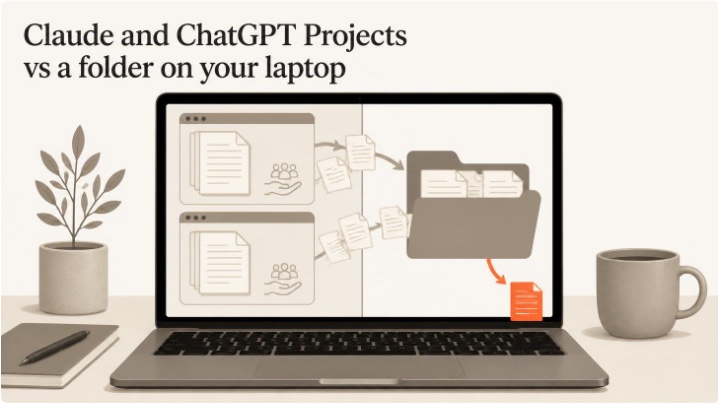
Every new chat with ChatGPT or Claude starts empty. You explain who you are. You paste in the document. You explain the house style again.
Twenty minutes later you have something useful, and tomorrow you do it all again.
There are two ways to stop repeating yourself. One is a Project in Claude or ChatGPT, on the web. The other is a folder on your own machine, which the desktop apps, Claude Code and Codex can all work in. They look similar, and they do different jobs.
This guide covers what each one is for, which to use when, the limits that rarely get mentioned, and how to stop a folder agent doing something you'll regret. It's long because the useful bits are in the detail. I checked every product fact here against Anthropic's and OpenAI's own help pages in October 2026.
Why every chat starts from zero
I call these tools Autocomplete Machines, because that's what they are. The model knows what it learned in training, plus whatever is in the chat right now. That second part is the context window.
Every turn, the model reads the whole window again from the top, then writes the next word. Close the chat and the window is gone. Nothing carries over unless you put it somewhere the next chat can find it. I wrote about this in more detail in what a context window is, and why ChatGPT forgets.
A Project or a folder is a way of filling that window back up for you. Standing instructions plus the files that matter, loaded before you type, so the first answer starts from what you know.
Two places to keep your context
Here's the side-by-side I now put in front of every team I train.
| Web Project (Claude, ChatGPT) | Folder (desktop apps, Claude Code, Codex) | |
|---|---|---|
| Who it's for | The team | You |
| The brief | Project instructions, written once | CLAUDE.md at the top of the folder (AGENTS.md for Codex) |
| Files | Copies you upload. It reads them and doesn't change them | Your real files. It reads them, writes new ones and keeps notes |
| Memory | Chats can pick up from earlier chats in the same Project | Whatever it writes into the folder, there for every session after |
| Where it runs | A sandbox in the browser | Your machine, with your connectors |
| Sharing | Share the Project with your team | A shared drive or git |
| Setup | None | A folder, a brief and some permissions |
My rule of thumb is short. If the team needs to see it, use a web Project. If it's your own work, and you want the work done and the results kept, use a folder.
The second rule is about when to move. Start on the web if you like. The moment you notice you keep uploading the same files again, or copying answers out by hand, it's time for a folder.
What a Claude or ChatGPT Project is good at
Think of a web Project as a briefed colleague the whole team shares. It's good at four things.
The first is chatbots for the team. Load the guidance and the procedures, write a brief, and anyone on the team can ask "how do we handle a contract variation?" and get the same answer. No build, no IT ticket.
I watched a comms agency do exactly this at their team offsite in September, in Microsoft Copilot, which calls the same idea a notebook. Everyone pinned real files for one client into a notebook, then built an agent on top. One person built a pre-meeting brief generator. Another built a parliamentary monitoring briefer.
The second is sharing. In ChatGPT, a shared project gives everyone the same files, instructions and conversation history, and everyone sees updates in real time.
In Claude, Team and Enterprise plans can share a Project across the organisation, with "can view" or "can edit" access. Claude's help pages don't say whether one person's chats inside a shared Project are visible to everyone else. Test it before you promise your team they are.
The third is reach. It works in the browser and on your phone, with nothing to install.
The fourth is my favourite: a reviewer with a point of view. Give a Project a perspective, and ask it to review your work before the real audience does. I'm building one at the moment that's briefed as a board.
Its instructions describe what the board cares about: money, delivery and risk. Its knowledge holds past board packs plus a log of decisions and actions.
When a new pack is ready, I upload it and ask it to review the pack as the board would. What comes back is the questions they'll ask, what's missing, and whether it's ready for a decision.
The same idea got the biggest reaction at that comms offsite. One team built a reaction panel that reads a draft press release as six different audiences before it goes out: a trade journalist, a select committee member, a civil servant, a hostile commentator on LinkedIn and so on. The statement stays theirs. The panel gives them six readers before the real ones arrive.
Two cautions on that one. Only upload packs you're allowed to put in that tool. And brief it on roles ("the finance view", "the delivery view") rather than modelling named people, because a simulation of how a named executive would react is easy to misread once it's forwarded.
So where does the web win? Team research and due diligence, where several people work on one company or one piece of research and everyone needs to see the outputs.
Deep research works well here, with your due-diligence checklist in the Project instructions so every run covers the same ground. The other two wins are board review and shared runs on a schedule, such as a daily news brief the whole team reads.
The limits of a web Project
It runs in a sandbox. It can't see your desktop, your other folders or the apps on your machine.
The files are copies. You upload a snapshot, and when the tracker changes, you upload it again. The Project reads its files and never writes back to them, so anything it produces lives in the chat until you copy it out.
There's also a ChatGPT detail that catches people. You can create a scheduled task inside a project, but OpenAI's help page says that task can't read the files uploaded to the project. If your daily run depends on the project's files, it won't see them.
Can you run skills and schedules on the web?
This came up in a session this week, and the answer is yes on both, with some small print.
Skills first. In Claude, skills are switched on for your account under Customize, then Skills. They need code execution turned on. They're available on Free, Pro, Max, Team and Enterprise.
On Team and Enterprise, an owner switches them on for the organisation and can provision skills for everyone. Members can also share their own skills, and the people they share with get a view-only copy. I wrote up how I build mine in create Claude Cowork skills: do the work first.
In ChatGPT, Skills are available on Business, Enterprise, Healthcare and Edu. You find them in the sidebar under Plugins, on the Skills tab. On Enterprise and Edu, admins decide who can use, share and publish them under Permissions and roles. If you can't see them at work, that's the first question for your admin.
Now schedules. ChatGPT's scheduled tasks run on the web and can use connected apps like Gmail and Slack where your workspace allows it. There's a cap on active tasks: 5 on Plus, 10 on Business, 15 on Pro and Enterprise.
Sharing a task by link shares the instructions and the schedule, but not the results. For a run the whole team can see, Business and Enterprise have team tasks. These run in the cloud under the team's service account, and teammates can view, run or edit them depending on their permissions.
Claude has scheduled tasks on every paid plan. They run remotely, so they keep going while your laptop is asleep. The exception is a task that needs files or apps on your computer, which only runs there.
Since September, Claude has also been merging Cowork and chat into a single conversation, starting with Pro and Max. Anthropic's pages don't yet cover sharing scheduled results with a team.
How memory works inside a Project
This one surprised people more than anything else in the session.
A new chat inside a Project doesn't start from zero. In Claude, each Project has its own memory, and chat search inside a Project only looks at that Project's chats. A Project also draws on your memory from chats outside Projects, unless you turn off "Use account memory" on the Project's page.
The catch is the plan. Memory is on by default on Free, Pro and Max. On Team and Enterprise, the organisation's owners decide whether it's available, and it's off for each member until they switch it on. If someone tells you their work Project "doesn't remember anything", that's the first thing to check.
In ChatGPT, you can choose project-only memory when you create a project. Chats in the project can then refer to other chats in the same project, and nothing outside it.
How to tell when a chat is full
You can't, at least not in the chat apps. Neither ChatGPT nor Claude shows a context meter in chat, on the web or in the desktop apps.
Someone asked OpenAI for one on its community forum in June 2026. OpenAI support replied in September that they'd pass the request along, with no timeline. Claude's Settings, then Usage, shows your plan's limits, which is a different thing from how full this chat is. Browser extensions will estimate it for you, but they miss uploaded files, tool results and the system instructions, so treat the number as a rough guide.
The exception is Claude Code. Type /context and it shows you what's using the window.
Everywhere else, use the signs. When it forgets an instruction you gave it earlier, repeats itself, or contradicts something it already agreed, the window is full or close to it. Ask for a handover:
Write a handover note for a new chat: what we're working on, what we decided, what's still open, and the files that matter.
Paste that into a new chat and carry on. Inside a Project, the new chat can pick up from earlier chats anyway, so the handover can be shorter.
Four habits keep you out of trouble in the first place. Set the context once, in a Project or a folder, not in every prompt. Point at the file instead of describing it.
Break a ten-step request into steps, because a big request fills the window with its own working. And start a new chat for a new task.
What a folder is good at
The folder is where your own knowledge work lives. If the output is yours (a brief, an analysis, a deck, your prep for a meeting) it belongs in a folder.
That includes two things people often put on the web. Programme or client work is one. It depends on live files, on writing results back, and on connectors to your email and calendar.
Meeting prep is the other. A /meeting-prep skill in a folder reads the calendar, the client's file and the notes from last time, drafts the brief and saves it next to everything else. A web Project can't do that.
I run my whole business from one folder. Every client has a subfolder with a running log of what's been agreed. Invoices come from a skill. My Friday reviews run as three skills.
The CLAUDE.md at the top says where everything lives, so any session starts knowing the business.
A folder does four things a web Project can't.
It builds a knowledge base as you work. Every programme, client and meeting gets a file, and each session adds to it. A month in, it knows your work better than any Project you could upload to.
It gives you an analytics layer. A skill on a schedule pulls the day's email, calendar and tracker data (Gmail, Calendar, Airtable, whatever you use) into a data/ folder. Then you can ask questions across all of it at once.
Last month I asked mine to compare my client folders with my CRM. It came back with 14 of my 22 client folders that had no CRM record at all, including some of my biggest live work. Each system looked complete on its own. It took something reading both to find the gap.
It runs procedures by name. A skill is a checklist you write once and run with a slash command. The brief says the skill exists. The skill says how to do the job.
And it builds things. A dashboard or a deck is a file it can rebuild. My rule is to change the source, not the output. If a deck is built by a script, fix the script and run it again, so the fix survives the next rebuild.
If you're weighing up which Claude tool to run a folder in, I compared them in Claude chat vs Cowork vs Code. If you only use Claude, Claude Projects vs Cowork vs Skills covers how those three fit together.
A suggested folder structure
Nobody prescribes folder names. What matters is the layering: one short brief at the top, a brief in each subfolder that loads only when you work there, and procedures kept as skills. Here's a structure I'd start most people with.
work/
  CLAUDE.md              role, how you work, where things live
  .claude/skills/        /meeting-prep · /exec-update
  programmes/
    kestrel/
      CLAUDE.md          loads only when you work in Kestrel
      brief.md · milestones.md · decisions.md
  people/                one page each: contacts, history
  meetings/              notes and actions, by date
  data/                  daily pulls: Gmail, Calendar, your tracker
  templates/             exec update · board paper
  _archive/              a dated copy before any change
  _to_delete/            nothing is deleted, only moved here
Keep the top brief short and specific. "Milestones live in programmes/<name>/milestones.md" is useful. "Keep files organised" is noise. When it gets something wrong twice, add a line.
A CLAUDE.md inside a subfolder is only read when you work in that subfolder. That's how one folder can hold five programmes without mixing them up.
Keep passwords, keys and other people's personal data out of the brief. Work data stays in the tools your employer has approved, on your work account.
If you use both Claude and Codex, Claude reads CLAUDE.md and Codex reads AGENTS.md. Keep one of them as the real brief, and put a single line in the other that says to read it first.
How to keep a folder agent safe
In a session this week someone asked the question I'd been waiting for. The instructions will change over time. What happens when a change makes it worse? How do you version-control it?
Here's what I tell people, in order.
Keep versions. Put a line in the brief: before you change CLAUDE.md or a skill, save a dated copy to _archive/. If the folder sits in OneDrive, Google Drive or Dropbox, you also get version history for free.
When you're comfortable, put the folder in GitHub. Every change is recorded with who made it and why, and going back is one command.
Never delete. My own folder has this rule: never delete a file, move it to _to_delete/ with the date and a reason, and I'll empty it. An agent that can't delete can't wipe out a month of work by misreading an instruction.
Approve changes to the brief. Let it suggest the new line, and you accept it. I have a Friday run that proposes changes to my brief and my skills, and nothing goes in until I've read it.
Check every save. I've had these tools tell me a file was saved when it never arrived. The brief now says to confirm a file's size or timestamp before reporting it done.
One more thing, said plainly. An instruction in a brief is a guardrail, and guardrails can be missed.
The real control is what you let the agent reach (which folders, which connectors) and the approval prompts before it sends or changes anything. Keep both switched on. If it acts with your login, you did it.
Using both together
The best setups use both. The board reviewer I mentioned earlier works as a loop. The folder agent builds the quarterly pack from the programme folder.
I upload the pack to the board Project and ask for its review. The feedback goes back to the folder agent, which revises the pack.
The folder does the work. The web Project checks it from a point of view I'd otherwise only get in the meeting itself.
Where to start
Start with one prompt. Paste this into Claude or ChatGPT:
Interview me about my role, one question at a time: the work I do, who I work with, the documents I produce, the tools I use and how I like things written. Then draft the project instructions (or a CLAUDE.md) for a base I can use for everything at work. Mark anything you assumed.
Then put the answer in the right place. If it's for the team, it goes in a web Project's instructions. If it's for you, it goes in the CLAUDE.md at the top of your folder.
If you'd like a hand setting this up around your own work, that's what a 1-2-1 co-work session is for. Ninety minutes on your work and your tools, and you keep the recording, the transcript and the files. You can see what happens in a session first. If you'd rather start free, the course at learnautocomplete.com shows how these tools work under the hood.
If you're not sure which one you need, message me. I'll tell you honestly.
Related Articles
AI cited my site 18,400 times and I had no idea
Google Search Console has a hidden report on how often AI Overviews and AI Mode show your site. Mine...
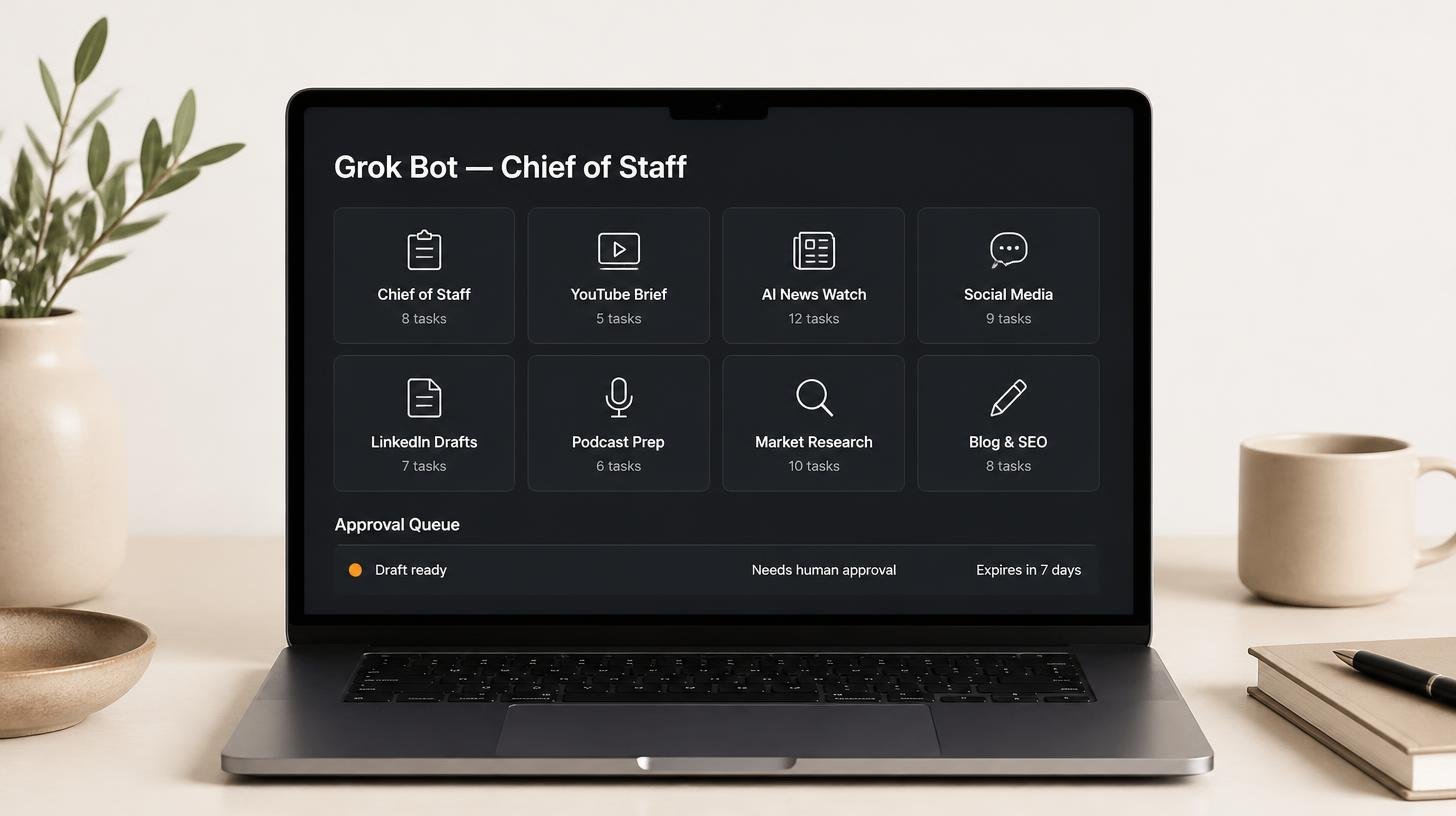
How my Grok Bot chief of staff grew into eight bots
Six weeks on, my Grok Bot chief of staff runs seven specialist bots. What they do each week, what br...
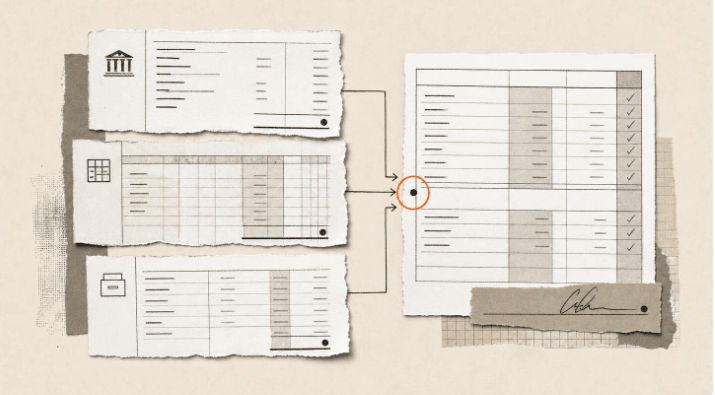
Claude skills for finance, and how to build your own
Claude skills for finance: the eight in Anthropic's Finance plugin, what they did on real data, and ...
How to create Claude Cowork skills by doing the work first
Build Claude Cowork skills that work first time. Do the task once, correct it, then have Claude pack...