How to create Claude Cowork skills by doing the work first
By Riz Pabani on 01-Oct-2026
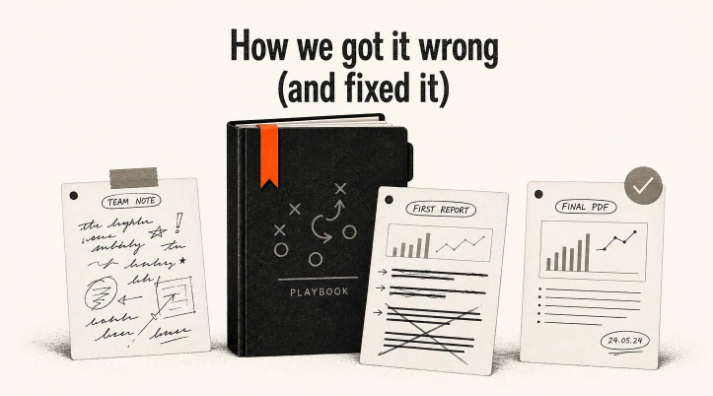
Most people build their first Claude Cowork skill the wrong way round.
They open a blank file and try to write the perfect set of instructions from memory. Every rule, every edge case, every formatting quirk, before Claude has touched a single real document. The result runs to three pages. It looks thorough.
Then they run it on real data and it falls over. Claude misreads a column header. It summarises something that should have been kept word for word. It dumps paragraphs into the chat instead of producing a file anyone can use.
There's a simpler way to build Claude Cowork skills. Do the job once with Claude, by hand. Correct it until the output is something you'd actually send. Then ask Cowork to turn that conversation into a skill. This article walks through exactly how, step by step, and where it still trips up.
Why writing a skill up front goes wrong
When you write instructions in a vacuum, you write them for ideal conditions. Clean documents, consistent headings, sensible file names.
Real work never arrives like that. One person sends a bulleted list typed on their phone. Another attaches a Word document with nested tables and screenshots. A third sends a spreadsheet full of blank rows and a broken formula.
You can't predict how Claude will handle that mess until you watch it try. So the skill you wrote in advance misses the edge cases that actually break it.
You also end up writing instructions Claude doesn't need. It already knows what an executive summary looks like and how to total a column. Twenty lines on that is wasted space.
What it doesn't know is your standard. How long is too long for your boss. What you do when a source file is rubbish. Which numbers have to be at the top. You only find those out by looking at a real draft and saying what's wrong with it.
What Claude Cowork skills are
Cowork runs inside the Claude desktop app. You give it access to a folder on your computer, and it reads, creates and edits real files in that folder. You ask for a spreadsheet and a spreadsheet appears. No copying and pasting out of a chat window.
A skill is a saved set of instructions for one job. Under the hood it's a folder with a file called SKILL.md in it, written in plain English. Once it's saved to your account, you can call it by name (type / and the skill name) or just describe the task and Claude picks it up.
A good skill covers four things:
- what goes in, and in what format
- the steps Claude should follow
- the standard the output has to meet
- what comes out, and where it's saved
If you're still working out when to use a skill versus a Claude project, I compared them in Claude projects vs Cowork vs skills.
Build the skill by doing the job first
I'll use one example all the way through. Say you compile a weekly marketing update for leadership from three teams. One sends a rambling text file about website tests. One sends a PDF of search performance. One sends a spreadsheet of ad spend and acquisition costs.
Set up a folder Cowork can't damage
Make a dedicated folder, something like cowork-playground, and copy the three files into it. Point Cowork at that folder only. Never your whole Documents folder, your Downloads or your desktop.
Then add one line to your global instructions in Cowork's settings:
Before deleting, overwriting or renaming any existing file, show me what will change and wait for my confirmation.
That one sentence stops Claude quietly changing your source files halfway through a long task. If you haven't set Cowork up yet, start with my Claude Cowork setup guide.
Run the task by hand, with an outcome-first prompt
Open a new Cowork task on that folder and say what you want, not how to do it:
I have three weekly update files in this folder from our web, content and paid acquisition teams. Combine them into a single weekly marketing update for leadership.
Don't micro-manage it. You want to see what Claude does on its own, because that shows you what the skill has to correct.
The first attempt will usually be wrong in useful ways. Four pages long. The bad numbers buried under paragraphs of good news. Team jargon copied straight across.
In August I did this with a client who reviews quarterly reports from a portfolio of funded projects. Her first problem was access. The AI couldn't open the attachments stored in Airtable, so she downloaded them, zipped them up and gave it the zip.
Correct it until you'd send it
Don't fix the draft yourself. Tell Claude what to change, in the chat. Every correction you type becomes a rule in the finished skill, so be specific:
This is too dense for leadership. Restructure it:
- Lead with three headline metrics across all teams.
- Then exactly three highlights and three lowlights.
- Keep it under 300 words.
- Flag any metric that dropped more than 5% in the lowlights.
Read the second version. Once the content is right, fix the delivery. Text in a chat window isn't something you forward to a leadership team:
The content is right. Now save it as a properly formatted PDF in this folder.
Open the PDF. Check the spacing and check the numbers against the source files. Keep correcting until it's something you'd put your name to.
My quarterly-review client went through the same loop. She had it look back at her feedback from the previous quarter for anything still unresolved. Then she had it build a table of what each project said it would do against what it actually did. Then they untangled milestones that overlapped, and only then did it help her draft the feedback. Each of those steps ended up in the skill.
At this point you've done the job once. You've got the messy inputs, a trail of corrections and a finished file Claude knows you approved.
Ask Cowork to turn the conversation into a skill
In the same conversation, ask Claude to write the skill from what just happened:
Go back through this whole conversation. Look at every instruction, correction and formatting choice that got us to the final PDF. Package it into a reusable skill called weekly-marketing-report.
Anthropic's own Cowork tutorial recommends the same move: run the workflow, then ask Claude to package what you just did into a skill.
Claude will usually come back with a few questions first. Should the file name include the date? What should happen if one of the three files is missing? Answer them plainly:
Add today's date to every file name. If any of the three source files is missing, stop and ask me for it before doing anything else.
Those answers are the edge cases you'd never have thought to write down on a blank page. That's why this method produces tighter skills.
My quarterly-review client typed almost exactly that: "Based on what we've done in this chat, can you create a skill for me so I can do it next quarter?" She was working in Codex, OpenAI's equivalent of Cowork, and the method is identical. A few minutes later the skill was there, and it ran in a fresh chat.
It had also made a few decisions without asking, such as whether each quarter's review builds on the last one. So read the skill before you trust it, and change anything it guessed.
The best version of this is when the finished work already exists. In a September session, a client on a comms team had taken a 62-page technical programme document and written a public article from it herself. She gave Claude both files and asked for a skill that turns technical documents into something the public can read, for use across every programme. She told it to ask her questions before writing anything. Then she clicked Save skill at the bottom of the chat.
Save it and test it cold
Save the skill to your account. When Claude finishes writing it, there's a Save skill button at the bottom of the chat. If you're handed a file instead, upload it under Customize > Skills.
Now the real test. Start a brand-new task, so Claude has none of the original conversation. Put next week's raw files in the folder and type:
Run the weekly-marketing-report skill on the files in this folder.
If the skill is right, you get a 300-word update, three metrics, three highlights, three lowlights, a dated PDF in the folder. No questions about what matters to you. If something's off, correct it in that session and ask Claude to update the skill.
This is how my own Friday review works. I built it once by hand, saved it, and now I edit the output instead of building it from scratch every week.
If you work in finance, Claude skills for finance covers the eight skills in Anthropic's free Finance plugin, and two finance workflows built this way.
Once the skill works, wire it up
A skill that runs on files in one folder is the starting point. Two things make it more useful.
The first is connectors. Cowork connects to tools like Google Drive, Gmail, Notion and Slack from the Customize panel. Instead of downloading the ad spend spreadsheet every Friday, the skill can fetch it from Drive. Instead of you pasting the summary into Notion, Claude can write the page there.
The second is scheduled tasks. Ask Cowork to create a scheduled task that runs the skill at a set time, for example every Monday at 7am. I walk through a full example in how to set up a daily AI briefing with Claude Cowork.
Keep your standing preferences (tone of voice, house style, who reads what) in your global or project instructions, not inside every skill. Then every skill picks them up without you repeating yourself.
Where Claude Cowork skills still trip up
Cowork is good. It isn't finished, and you'll hit a few rough edges.
If Cowork says a file doesn't exist and you can see it on your screen, it's almost always sitting outside the folder you gave it access to. Move it in and ask again.
The browser is the next one. In a June session a client asked an agent to book her a train. More than half an hour later it was still scrolling up and down the booking site. Driving a live website is slow and uses a lot of your allowance, so I keep scheduled skills away from anything that depends on clicking through one.
If a skill does have to touch a website, have it get everything ready and stop before the final button. That's what I suggested for the train booking. Let the skill fill everything in, then click confirm yourself.
When you change a skill, check that the new version has actually replaced the old one under Customize > Skills. If it hasn't, Claude keeps running the old rules and you'll wonder why your fix didn't stick.
And a skill is only as good as the session that produced it. Garbage in, garbage out. If you approved a mediocre PDF in the original run, the skill will faithfully reproduce a mediocre PDF.
Build one with me
This is most of what happens in my 90-minute 1-2-1 co-work sessions. People turn up with nothing prepared. We spend about half an hour picking one or two jobs worth automating, then build them together as Claude skills using exactly this method. You leave with skills that already work on your real files.
You can read what happens in a session or book one here. If you're not sure whether it's right for you, message me. I'll tell you honestly.
Related Articles

AI cited my site 18,400 times and I had no idea
Google Search Console has a hidden report on how often AI Overviews and AI Mode show your site. Mine...
How my Grok Bot chief of staff grew into eight bots
Six weeks on, my Grok Bot chief of staff runs seven specialist bots. What they do each week, what br...
Claude skills for finance, and how to build your own
Claude skills for finance: the eight in Anthropic's Finance plugin, what they did on real data, and ...
How to cut AI costs with a model router
Most people run every task through one expensive AI model. A model router sends easy work to cheap m...