How to set up a daily AI briefing with Claude Cowork
By Riz Pabani on 08-May-2026

How to set up a daily AI briefing with Claude Cowork
Every morning at 6:36am, an agent searches for AI news while I'm asleep. By 7:08am, a second agent has turned those results into a formatted email and sent it to my inbox. I read it over coffee. The whole thing took months to get right.
That second sentence is the bit nobody tells you. The first version was terrible. It surfaced week-old articles, cited sources that didn't exist, and missed actual news happening that day. I've rewritten the prompt behind this daily AI briefing at least a dozen times. Here's what I learned.
Running Claude Cowork daily tasks on a schedule
What are daily tasks in Claude Cowork? Daily tasks in Claude Cowork are scheduled tasks set to repeat every day: you write the instructions once, set a time, and Claude runs them automatically on your own machine while you're not there. You configure four things — the instructions, the folders it can reach, the repeat schedule, and the tools it's pre-approved to use unattended — and the agent does the rest on its own.
There is no separate "daily tasks" feature with its own menu. When people search for Claude Cowork daily tasks, they mean scheduled tasks running on a daily repeat, which is exactly what the briefing below is built from — two of them, half an hour apart.
Setting up the scheduled task
Open Claude Desktop in Cowork mode and ask it to create a scheduled task. Something like: "Create a scheduled task that runs every morning at 6:30am to search for AI news and save a summary."
Claude creates the task for you. What you get is a panel with four sections you'll need to configure:
Instructions. This is the prompt. The set of instructions your agent follows every time it wakes up. Think of it as a job description for someone who shows up at 6:30am, does exactly what you wrote, and clocks off. Your first version will be short. Maybe five lines. Mine is now over 100 lines. It grew because things kept going wrong and I kept fixing them.
Folders. Which folders on your machine the agent can access. It needs somewhere to save its output. I pointed mine at my project workspace folder, which is where the JSON files and markdown briefings accumulate. Without this, the agent has nowhere to write.
Repeats. The schedule. "Every day at ~6:30" in my case. Set it for whenever you want the briefing waiting in the morning.
Always allowed. This is the permissions bit. The agent runs unattended, so you need to pre-approve the tools it uses. Mine has "Browser: All websites" (so it can search the web) and gmail_create_draft (so the email agent can send). Without these, the agent would hit a permissions wall every morning at 6:30am with nobody around to click "allow."
Once those four things are set, the task runs automatically on schedule. Every morning, Claude wakes up, reads the instructions, uses the folders and permissions you gave it, and does the work.
Version 1: one agent doing everything (this didn't work)
My first attempt was a single scheduled task that searched for news, summarised it, and emailed me the results. All in one go.
The problem: the research step takes a while. The agent runs 8-10 web searches, checks publication dates, fetches full articles when dates are ambiguous, deduplicates, and writes a structured summary. By the time it finished all that, it would sometimes rush the email or hit a timeout. Some mornings the email arrived half-formatted. Some mornings it didn't arrive at all.
So I split it into two agents with a 30-minute buffer. Agent 1 does the research at 6:36am and saves the output to a file. Agent 2 wakes up at 7:08am, reads that file, and sends the email. If the research agent runs long, there's breathing room. If it fails entirely, the email agent notices the file is missing and reports the problem instead of sending garbage.
This is the single most useful thing I learned: separate the research from the delivery. Let each agent do one job well.
The first few weeks are rough
Most "how to build an AI agent" posts skip this part entirely. I won't.
Week one, the briefing was bad. Properly bad. It surfaced three-day-old articles and presented them as today's news. It included stories from content farms that were just rewriting other people's reporting.
Twice it cited articles that didn't exist at all. Made-up URLs, made-up headlines. Classic hallucination, except it was arriving in my inbox at 7am looking professional.
The fix was iteration. Every morning I'd read the briefing, note what was wrong, and update the prompt. Here's what changed over the first month:
The freshness filter got strict. My prompt now says: "Check the publication date in the snippet, URL slug, or metadata. If the date is ambiguous or missing, fetch the full article page and look for a publish date or datetime element in the HTML. If you still can't confirm it's from the last 24 hours, drop it. No exceptions." That paragraph didn't exist in version 1. It exists because version 1 kept including stale news.
The search queries got specific. I started with five generic queries like "AI news today." Now I have 30 queries organised into six categories: new models, AI agents, job market, enterprise adoption, productivity, and regulation. The agent rotates through 8-10 per day so it gets broad coverage over the week without repeating the same sources daily.
I added a "quiet day" rule. Early on, if nothing notable happened, the agent would pad the briefing with marginal stories to fill the template. Now the prompt says: "If fewer than 3 stories pass the freshness filter, write a short 'Quiet Day' briefing. Include whatever 1-2 stories passed and suggest revisiting yesterday's content opportunities instead. Do NOT pad with old news." A short honest briefing is worth more than a long padded one.
The output went to JSON first. This was a turning point. Instead of going straight to a human-readable summary, the agent now saves all raw findings to a date-stamped JSON file with structured fields: title, URL, source, published date, category, snippet. Then it writes the readable summary from that structured data. The JSON gives me an archive I can search later, and it forces the agent to be precise about what it found before it starts summarising.
The email format evolved
The first version was plain text. Just a list of headlines with links. It worked, but it was ugly and hard to scan on my phone.
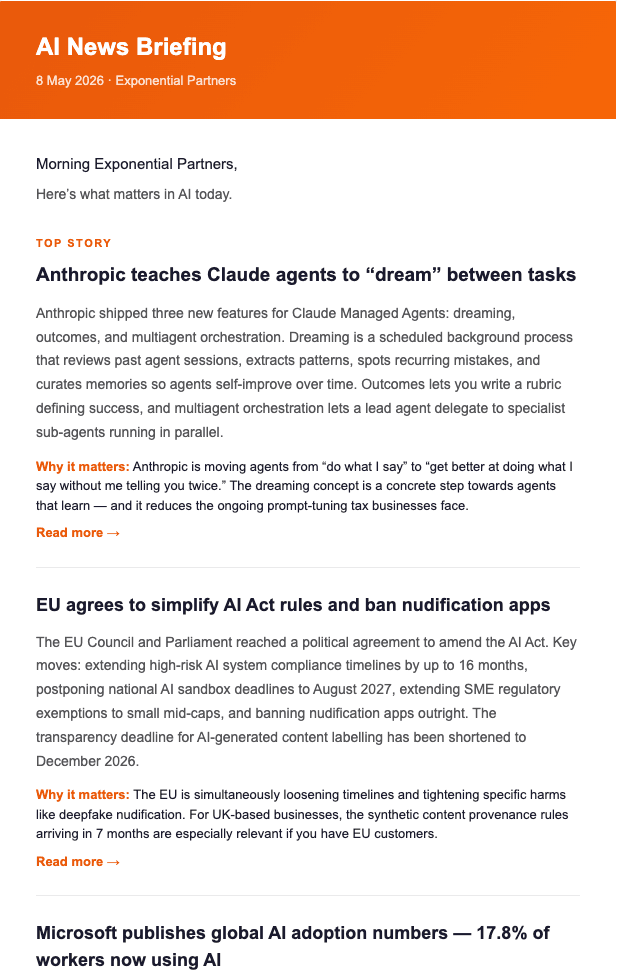
I iterated on this separately from the research prompt. The email agent reads a finished markdown briefing and converts it to HTML. The current version has an orange gradient header with the date, a "TOP STORY" label on the lead item, story cards with headline, summary, "why it matters" callout, and "read more" links. There's a secondary "also on the radar" section for minor items, and a content opportunities section at the bottom suggesting LinkedIn or blog angles I could pursue.
All inline CSS, table-based layout. That matters because email clients strip <style> blocks. I learned this the hard way when the first HTML version looked perfect in the browser and arrived as unstyled text in Gmail.
The two prompts I actually use
These have been refined over months. I'm sharing condensed versions. Yours will start shorter and grow as you iterate.
Prompt 1: the research agent (runs daily at 6:36am)
You are running a daily AI news briefing for [YOUR NAME], who runs [YOUR BUSINESS].

OBJECTIVE: Search for AI news from the last 24 hours, compile raw findings
into a JSON file, and write a concise markdown summary briefing.

STEP 1 — SEARCH
Run 8-10 of these queries (rotate daily for broad weekly coverage).
Filter every search to last-24-hour results only.

New models & releases:
  - new AI model released today
  - OpenAI announcement OR launch
  - Anthropic Claude new features OR update
  - Google Gemini update OR launch
  - Meta Llama open source model news

AI agents & tools:
  - AI agent new launch OR product
  - AI coding assistant new update
  - no-code AI tool new release

AI & the job market:
  - AI replacing jobs new study OR report
  - AI skills gap workforce new report
  - AI hiring trends new data

Enterprise AI adoption:
  - enterprise AI adoption news
  - AI ROI business new case study

Productivity & workflows:
  - ChatGPT OR Claude new business use case
  - AI prompt engineering new tips

Regulation & ethics:
  - AI regulation policy new UK OR EU OR US
  - AI copyright intellectual property new ruling

STEP 2 — STRICT FRESHNESS FILTER
For every result, check the publication date. If ambiguous, fetch the
full page and look for a date. If you can't confirm it's from the last
24 hours, DROP IT. No exceptions. Note how many were dropped.

STEP 3 — SAVE RAW JSON
Save to news/ai-news-raw-YYYY-MM-DD.json with fields:
date, queries_used, total_results_before_filter,
results_dropped_as_stale, and results array with:
title, url, source, published_date, category, snippet.

STEP 4 — WRITE MARKDOWN BRIEFING
Save to news/ai-news-briefing-YYYY-MM-DD.md with:
- Top Stories (3-5 items): summary, published date, why it matters,
  suggested content angle, source link
- Other Notable: bullet points with links
- Content Opportunities: 2-3 post/article ideas with hooks
- Freshness Report: X found → Y dropped → Z included

If fewer than 3 stories pass the filter, write a "Quiet Day" briefing.
Do NOT pad with old news.
Prompt 2: the email agent (runs daily at 7:08am)
You are sending today's AI news briefing as a formatted HTML email.

A separate task saved a markdown briefing earlier this morning.

STEP 1 — Read news/ai-news-briefing-YYYY-MM-DD.md (today's date).
If the file doesn't exist, stop and report that the research task
may not have run yet.

STEP 2 — Build an HTML email:
- Inline CSS only (email clients strip style blocks)
- Table-based layout, max-width 620px
- Header: orange gradient background with "AI News Briefing" title
  and today's date
- First story gets a "TOP STORY" label
- Each story: headline, summary paragraph, "why it matters" line,
  "read more" link
- "Also on the Radar" section for minor items
- "Content Opportunities" section at the bottom
- Sign-off and footer

Also create a plain-text version.

STEP 3 — Send via your email API to your recipients.

STEP 4 — Verify the send succeeded.
These are simplified. My actual prompts are longer because they include specific formatting rules, error handling, and workarounds I've added over time. But this is the structure, and it's enough to get a working version running on day one.
What to expect in your first month
Week 1: The briefing will include stale stories and possibly cite sources that don't exist. Read it critically. Note every problem. Update the prompt each evening.
Week 2: The freshness filter will start working properly once you've added enough specificity. You'll shift to tuning the search queries. Are you missing topics you care about? Are you getting too much noise from a particular category? Add queries, remove queries, get specific.
Week 3: The content will be reliable. Now you'll notice the format isn't quite right. Too many minor stories. The "why it matters" lines are generic. The content opportunity suggestions are vague. Tighten the output instructions.
Week 4: It works. You stop editing the prompt every day. You start trusting it. Some mornings you skim it in 90 seconds and move on. Other mornings it surfaces something that changes your plan for the day. Both outcomes are the point.
The real cost of this
Claude Desktop with the plan that supports Cowork mode. That's the only hard requirement. No server, no API keys, no deployment. The scheduled tasks run on your machine.
Time cost: the initial setup takes an hour if you know what you want to track. The iteration takes 10-15 minutes a day for the first two weeks, tapering to nothing by week four.
If you'd rather not piece this together yourself, that's what my Claude Cowork setup and training session is for. It's 90 minutes, one-to-one, on your own machine and your own accounts. We build a briefing like this one, write your CLAUDE.md, link your connectors and leave you with workflows that are already running.
Not ready for that? My free course, Autocomplete, takes about an hour and explains how these models actually work, which makes everything in this post easier to tune.
I wrote about all my agents (not just this one) in what my AI agents actually do all day if you want the broader picture.
Or message me. I'll tell you honestly whether it's worth your time.
Related Articles
AI cited my site 18,400 times and I had no idea
Google Search Console has a hidden report on how often AI Overviews and AI Mode show your site. Mine...
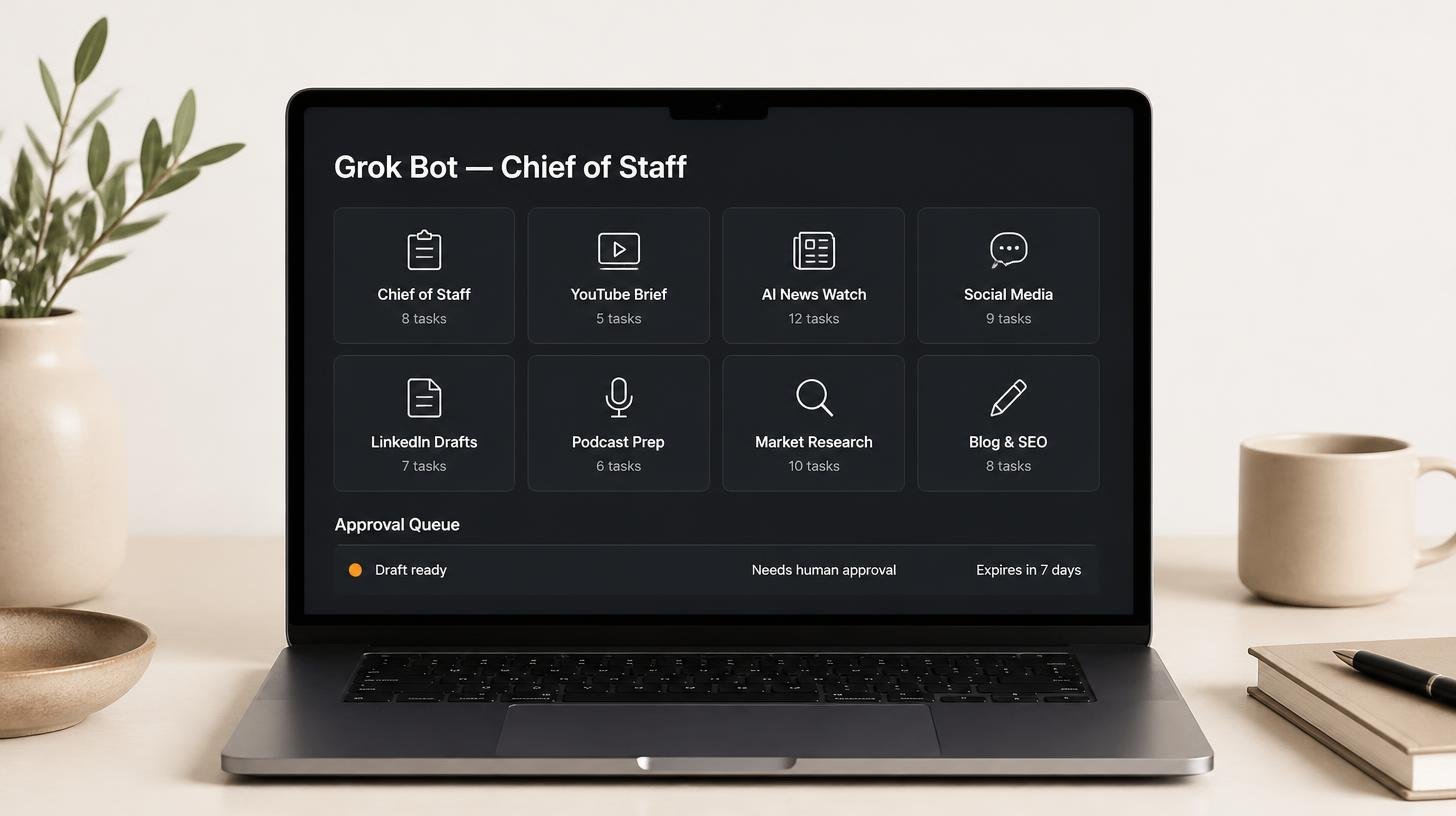
How my Grok Bot chief of staff grew into eight bots
Six weeks on, my Grok Bot chief of staff runs seven specialist bots. What they do each week, what br...
Claude skills for finance, and how to build your own
Claude skills for finance: the eight in Anthropic's Finance plugin, what they did on real data, and ...
How to create Claude Cowork skills by doing the work first
Build Claude Cowork skills that work first time. Do the task once, correct it, then have Claude pack...