Claude Cowork scheduled tasks in the cloud: my AI briefing
By Riz Pabani on 28-Nov-2026
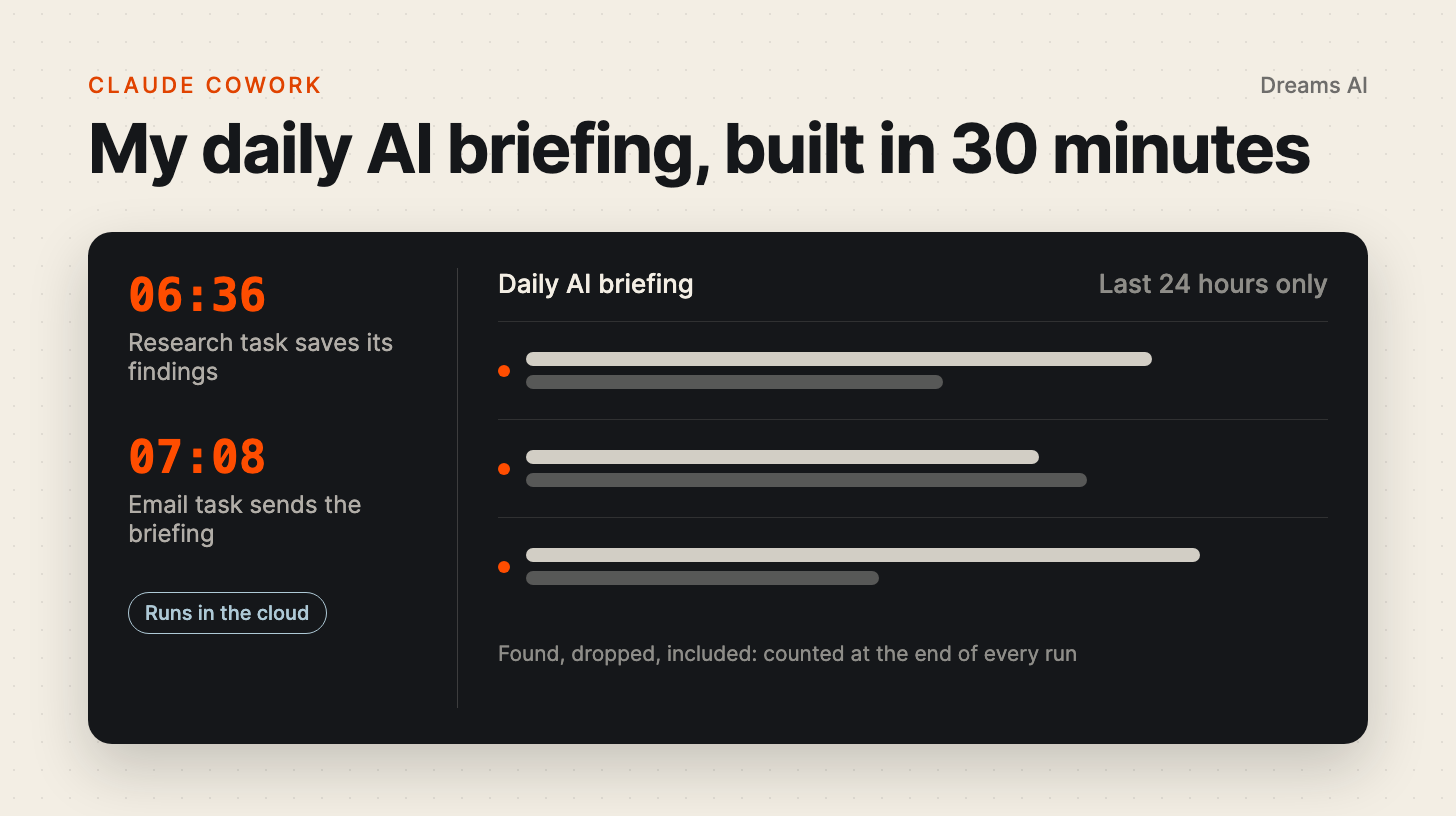
You can build a daily AI briefing in Claude Cowork in about 30 minutes. Create a scheduled task, write a prompt that says what to search, how fresh the news must be and where to send the result, set it to run daily, and spend the first two weeks fixing what it gets wrong. Cowork's scheduled tasks now run in the cloud, so the briefing arrives even when your laptop is shut (Claude Help Center).
I've had a version of this running every morning since spring. The first version was terrible. This is the one that works, and what I'd do differently if I started today. My original write-up has the full two-agent setup.
Want this built on your own accounts, around the news you actually care about? That's what my 90-minute 1-2-1 is for. See how a Cowork session works
What changed
When I first wrote about this in May, scheduled tasks ran on your own machine. If the laptop was asleep at 6:30am, no briefing. I left Claude Desktop running overnight so it would fire.
That's gone. Anthropic's help centre now says scheduled tasks "run remotely, so they run on their cadence even when your computer is asleep or the Claude Desktop app is closed" (source). The exception is a task that needs local files or apps. Attach a folder and a setting called Require this computer switches on. The task then runs only while your computer is awake with Claude Desktop open. Older tasks that were set up to run on your computer carry on running there.
That catches my own setup. My research task saves its findings to a file, which ties it to my Mac. If you want the lid-shut version, have the task email you the briefing and don't attach a folder.
One warning. Someone has reported on GitHub that a cloud task tied to their computer was switched off after it fired once while the Mac was asleep, and it didn't come back by itself. For the first few days, open the Scheduled page and check each run happened.
Two other things matter:
- Scheduled tasks are on every paid plan: Pro, Max, Ultra, Team and Enterprise (same source).
- Pro is the cheapest of those. UK prices are in my LLM subscription comparison.
So the honest cost of this briefing is a Pro plan and half an hour. No server, no API keys.
My own briefing still runs on my MacBook Pro, because of that file.
How to set it up in 30 minutes
1. Decide what "news" means for you (5 minutes)
Write down five to ten topics. Mine are new models, AI agents, the job market, enterprise adoption, productivity and regulation. If you can't name them, the agent can't either, and you'll get a generic tech roundup you stop reading by Thursday.
2. Create the scheduled task (5 minutes)
In Cowork, click "Scheduled" in the left sidebar, then "New task". You can pick "Create with Claude", which asks you a few questions and drafts the task for you, or "Set up manually". You can also type /schedule in any Cowork task (Get started with Claude Cowork).
The manual form asks for a name, the prompt, an approval mode, how often it runs (hourly, daily, weekly, weekdays or manually), and optionally a model and a folder. Pick daily.
3. Paste a starter prompt (10 minutes)
Use the prompt below and change the bits in brackets. Don't try to make it perfect. Mine is now over 100 lines, and every one of them is there because something went wrong.
4. Run it once by hand and read it like an editor (10 minutes)
Trigger a run from the Scheduled page. Check every link. Check every date. If one story is from last Tuesday, your freshness rule isn't strict enough yet.
The prompt I'd start with
You are running a daily AI news briefing for [YOUR NAME], who [WHAT YOU DO].

1. SEARCH: Run 8-10 searches across these topics, rotating through them
   over the week: [TOPIC 1], [TOPIC 2], [TOPIC 3], [TOPIC 4], [TOPIC 5].
   Only keep results from the last 24 hours.

2. FRESHNESS: Check each result's publication date. If it's unclear,
   open the page and look for a date. If you still can't confirm it's
   from the last 24 hours, drop it. No exceptions. Count what you dropped.

3. WRITE: 3-5 top stories, each with a two-sentence summary, why it
   matters to me, and the source link. Then a short "also on the radar"
   list. End with: found X, dropped Y, included Z.

4. QUIET DAYS: If fewer than 3 stories pass the freshness check, send a
   short "quiet day" note with what did pass. Do not pad with old news.

5. DELIVER: [Email it to me / save it to my briefing folder].
That's the condensed version of what I run. The full one has 30 search queries in six categories and a separate formatting step.
What went wrong in my first month
This is the bit most setup guides skip.
Week one, it made things up. It presented three-day-old articles as today's news and pulled stories from content farms rewriting other people's reporting. Twice it cited articles that didn't exist. Made-up URLs, made-up headlines, arriving at 7am looking very professional.
The fix was the freshness rule. The "if you can't confirm the date, drop it, no exceptions" line exists because version one kept including stale news.
It padded quiet days. If nothing much happened, it filled the template with marginal stories. The quiet day rule fixed that. A short honest briefing beats a long padded one.
One agent doing everything kept failing. Research takes a while. My first single task would sometimes rush the email or not send it at all. I split it into two: a research task at 6:36am that saves its findings to a file, and an email task at 7:08am that reads the file and sends it. If the file is missing, the email task reports the problem instead of sending rubbish. Separate the research from the delivery. It's still the most useful thing I learned.
Raw findings went to a file first. The research task saves every result with title, URL, source, date and category before it writes anything readable. That gives me a searchable archive and forces the agent to be precise before it summarises.
I still run it as two tasks.
What to expect, week by week
- Week 1: stale stories and the odd invented source. Read every briefing critically and fix the prompt each evening.
- Week 2: the dates are right. Now tune the topics. Add what's missing, cut what's noisy.
- Week 3: the content is reliable but the format isn't. Too many minor stories, vague "why it matters" lines. Tighten the output rules.
- Week 4: you stop editing it. Some mornings you skim it in 90 seconds. Other mornings it changes your plan for the day.
Creating the task takes about five minutes once you know where things are. Allow 30 the first time. The real work is the iterating: 10 to 15 minutes a day for the first two weeks, then close to nothing.
FAQ
Can Claude Cowork run a task every day automatically?
Yes. Create a scheduled task and set it to daily. Each run is its own Cowork session, and you can see past and upcoming runs on the Scheduled page.
Does my computer need to be on for Cowork scheduled tasks?
Not any more for most tasks. They run in the cloud, even when your computer is asleep or the desktop app is closed. A task that needs local files or apps still runs only on your computer.
Which Claude plan do I need for scheduled tasks?
Any paid plan: Pro, Max, Ultra, Team or Enterprise. Pro is the cheapest.
Why does my AI briefing include old news?
Because the prompt doesn't force it to check dates. Tell it to confirm each story is from the last 24 hours, open the page if the date is unclear, and drop anything it can't confirm.
Want your briefing built and running before you leave? In a 90-minute 1-2-1 (£699) we set up Cowork on your own accounts, build a briefing around the topics you care about, and add one or two other scheduled jobs from your week. You leave with them already running. Not sure it's what you need? Message me and I'll tell you honestly. Book your session · Claude Cowork training · What happens in a session
Related Articles
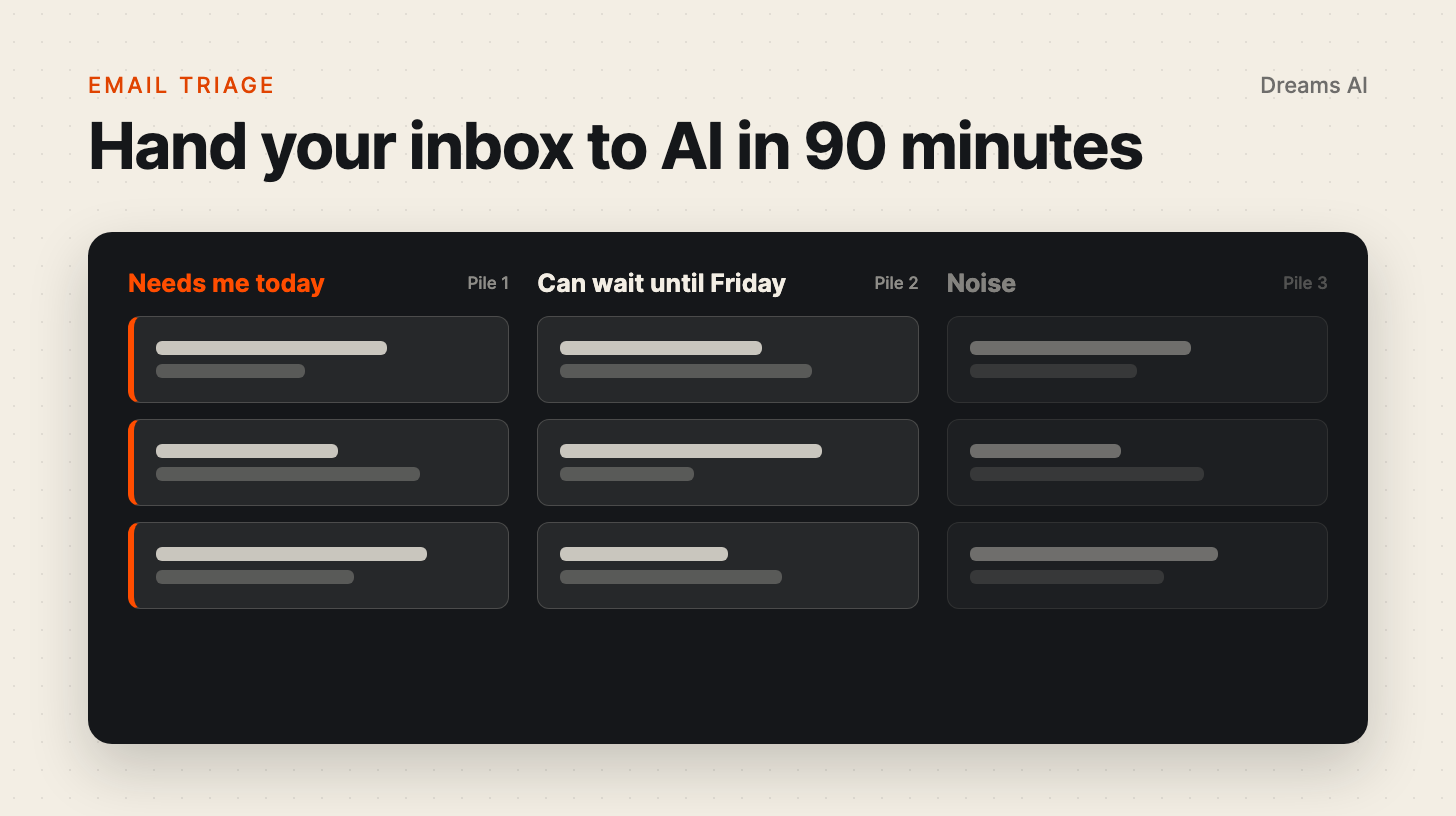
AI email triage in 90 minutes: a setup for professionals
AI email triage for a London solicitor or consultant in one 90-minute session: the three piles, the ...
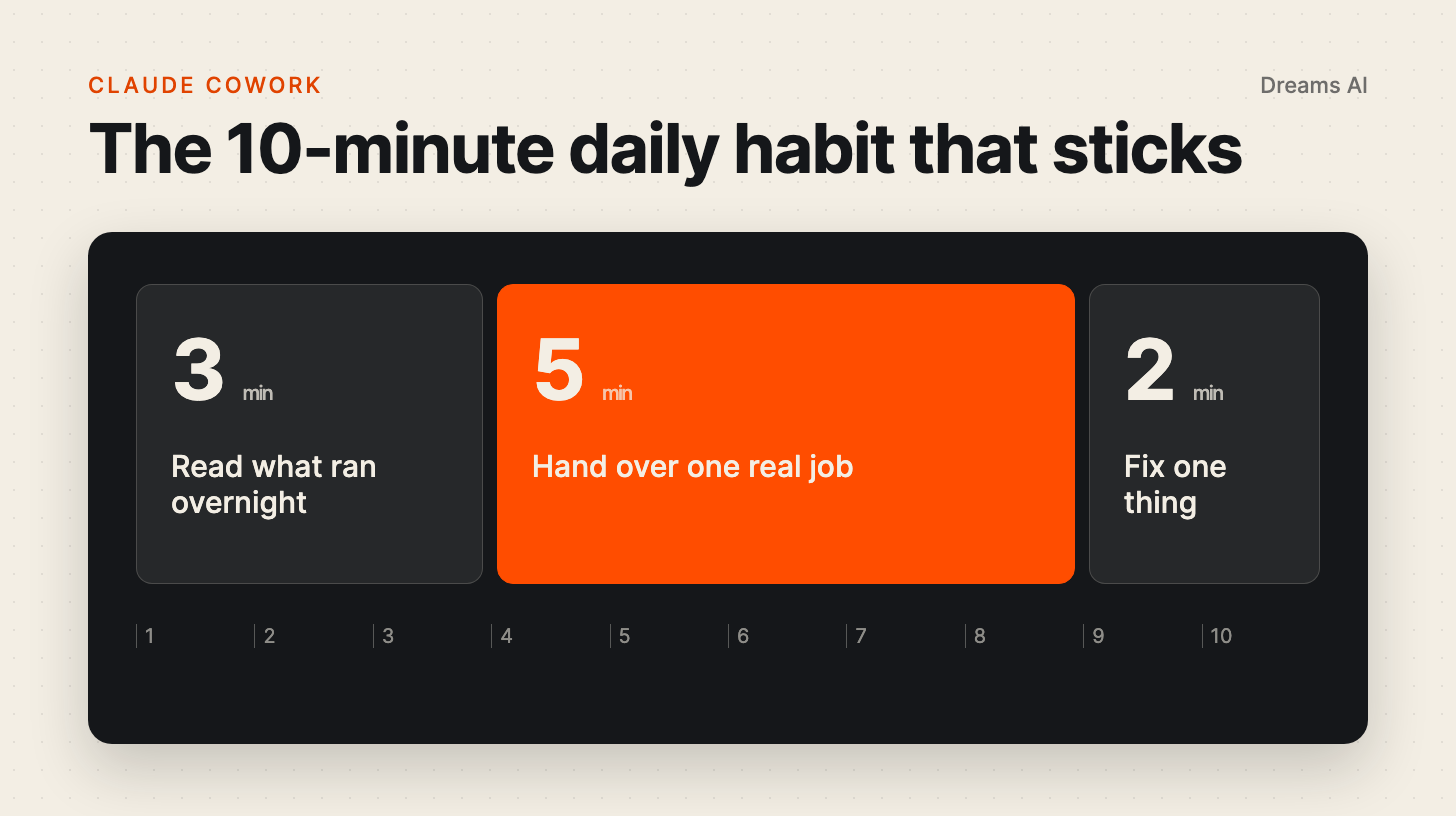
Claude Cowork habit: the 10-minute daily routine that sticks
The 10-minute Claude Cowork habit I'd give anyone who keeps forgetting to use it: one morning check,...
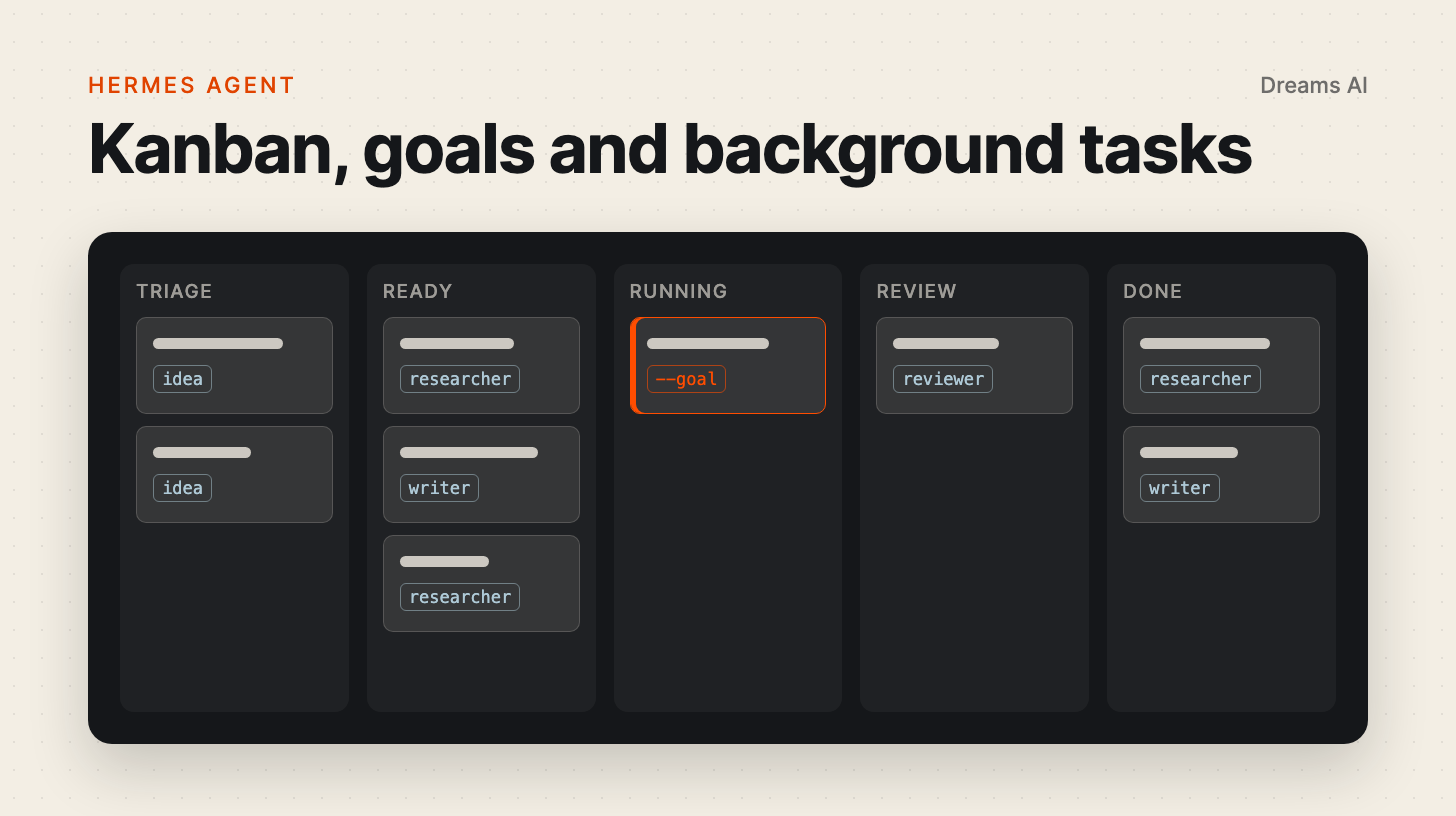
Hermes Agent kanban, step by step: five commands
Hermes Agent kanban, /goal and /bg: how they differ, the five commands to set up a board, and the go...
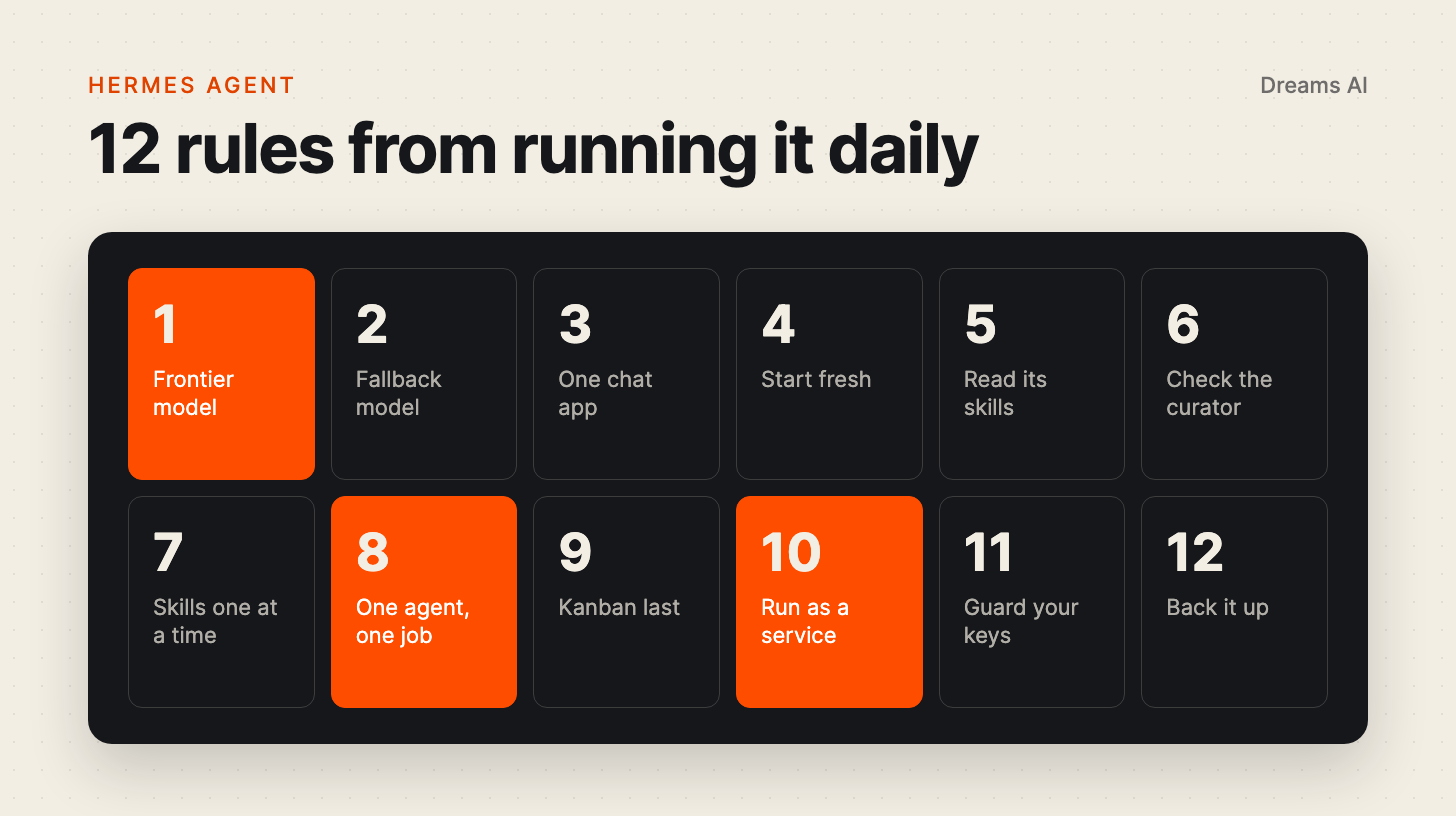
Hermes Agent best practices: 12 rules from daily use
12 Hermes Agent best practices from running it every day: model choice, pruning skills, the curator,...