AI email triage in 90 minutes: a setup for professionals
By Riz Pabani on 02-Dec-2026
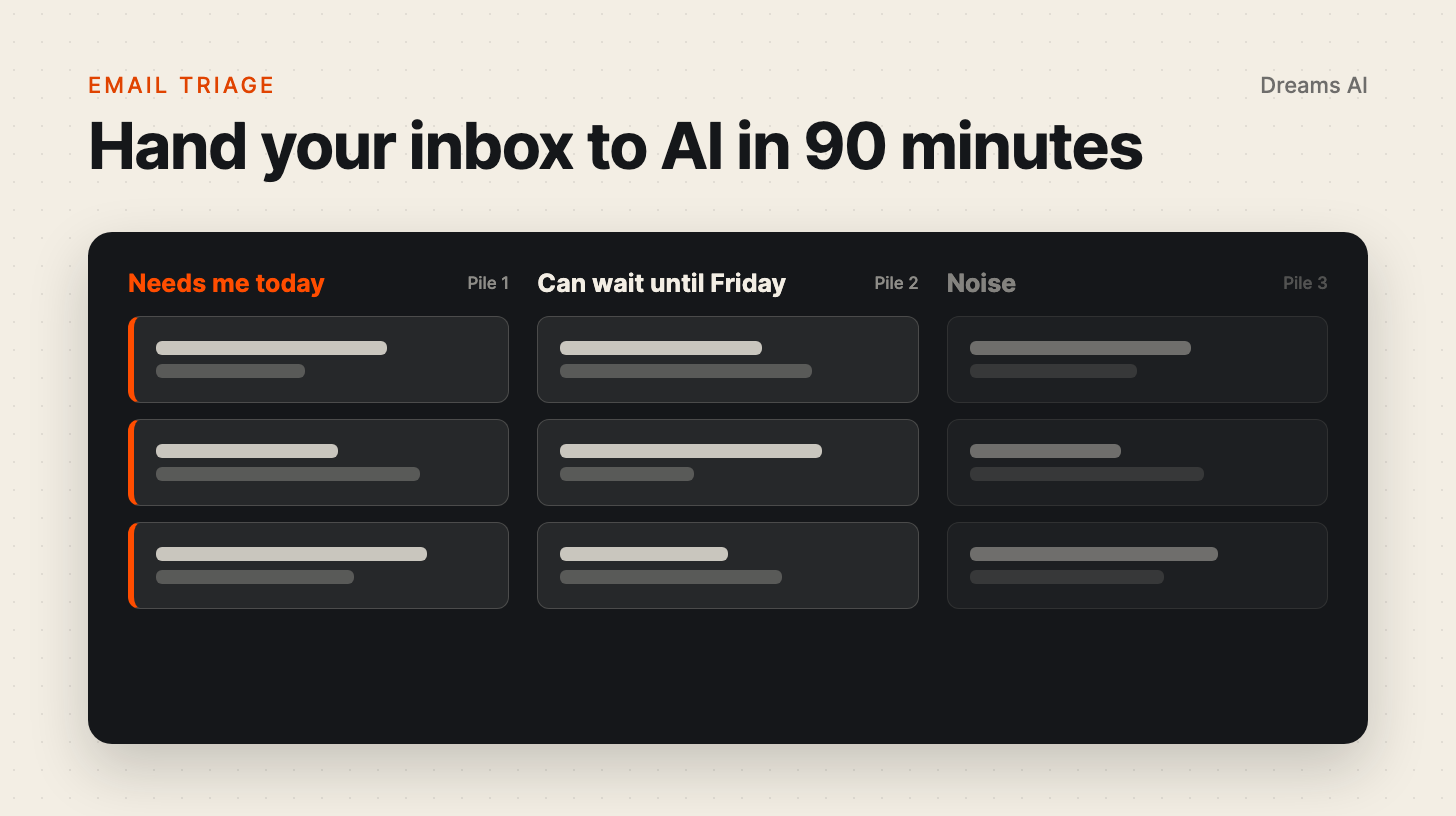
You can hand most of your email triage to AI in one 90-minute session. You write down your own sorting rules (who always matters, what can wait, what's noise), give them to an assistant that can read your inbox, and have it sort and summarise every morning while you keep every reply decision. If you're a solicitor or handle client confidential material, the first ten minutes go on checking which tool is allowed to see that mail at all.
That's the whole method. The rest of this post is how I do it for myself and what I set up with clients.
Want this running on your own inbox by the end of the afternoon? That's a 90-minute 1-2-1. See what happens in a session
Why email is the first job I'd hand over
Email eats the week. McKinsey Global Institute estimated that the average "interaction worker" spends about 28 percent of the workweek managing email (McKinsey Global Institute, The social economy, 2012). The study is old, but I haven't met a solicitor or consultant whose inbox got smaller since.
Triage is also the safest place to start. The AI only reads, sorts and tells you what it thinks matters. It sends nothing. If it gets something wrong, you see it in your morning summary and fix the rule.
What I run on my own inbox
I run a small team of AI agents. One of them works as my chief of staff and reads my work Gmail every morning. It flags what needs me, drafts nothing it hasn't been told to draft, and never sends anything on my behalf without my yes. When something needs a reply, I ask Claude Cowork for a draft: "draft a reply to the last email from [name], polite but firm, declining the timeline". It lands in Gmail Drafts and I send it myself. That used to take me 15 minutes and now takes about two. The morning email is a briefing: who I'm meeting, what the meetings are, some prep, and the actions I have outstanding. A lot of the triage itself now happens through my to-do list.
The one that sold my wife on it was smaller. Our kids' two schools send about five dense newsletters a week between them. A Hermes agent reads them and sends the two of us one summary on a Friday: dates, things to bring, things to pay. In week one it included far too much. By week three it knew what we read and what we skip. Before that, I found out about a reception show from another parent in the playground, five minutes before it started. I wrote about it on LinkedIn in April.
Neither of these is clever. They work because the rules were written down first.
The 90-minute setup
This is roughly how a triage session runs with a client. Timings move around, but the order doesn't.
- Check what's allowed (10 minutes). Which tool can legally and contractually see your mail? Your firm's Microsoft 365 Copilot, a business Claude or ChatGPT plan, or nothing yet. More on this below.
- Write your three piles (20 minutes). Needs me today. Can wait for a weekly batch. Noise. Then list who always goes in pile one: key clients, your boss or partner, the court or regulator, family. The example I gave a banker in November: anyone on a live deal goes in pile one, and everything he doesn't care about goes in pile three.
- Turn the piles into a prompt (15 minutes). See the copy-paste version below.
- Run it on yesterday's mail (20 minutes). Compare its sort with yours. Every disagreement becomes a new rule.
- Schedule it (15 minutes). A morning run before you open Outlook, so a summary is waiting.
- Agree what it never does (10 minutes). No sending, no deleting, no replying to clients. Drafts only, and only when you ask.
Step 2 is where the time goes. It's time well spent, because the rules you write are the product.
The triage prompt to copy
Paste this into Copilot, Claude or ChatGPT (whichever has access to your mail) and fill in the brackets:
Read my emails from the last 24 hours. Sort each one into: (1) needs me today, (2) can wait until Friday, (3) noise. Always put these senders in pile 1: [names or domains]. Always put these in pile 3: [newsletters, tools, notifications]. For pile 1, give me one line each: who, what they want, and the deadline if there is one. For pile 2, a single grouped list. Don't draft or send replies. If you're unsure which pile something belongs in, put it in pile 1 and say why.
The last line matters most. You want it to be cautious in your favour.
If you don't want AI in your main inbox
You don't have to connect your main inbox at all. Give the assistant its own email address. Then add a filter in your own mail that forwards only what that one job needs.
That's how I'd set up the school newsletter agent for a friend. It sees the newsletters and nothing else. If it goes wrong, the worst it can read is the bake sale notice.
It works for supplier mail, newsletters and admin. Don't forward client mail this way.
If you're a solicitor: confidentiality first
The Solicitors Regulation Authority published a warning notice on the misuse of AI on 17 August 2026. It says it has seen "confidential client information being entered into public AI tools, risking potential breaches of confidentiality and wider data protection requirements", and that both paid and free tools "may not provide the contractual, and technical safeguards needed" (SRA, Misuse of AI warning notice).
On privilege it goes further. Put client information into a public AI tool and legal professional privilege "may be permanently waived and unable to be recovered". The SRA says it received 42 reports about possible misuse of AI between July 2025 and July 2026.
So for client mail, use only the tool your firm has approved, under its business terms. If your firm hasn't approved one, triage your non-client mail first (internal, admin, newsletters) and ask your COLP or IT lead the question. None of this is legal advice. I'd want that check made before I touched anyone's inbox.
Consultants get more freedom, but the same logic applies: check your client contracts for anything on third-party tools.
Outlook users: don't build on Prioritize my inbox
Copilot in Outlook has a feature called Prioritize my inbox that marks each email high, normal or low priority as it arrives, based on factors like who is on the thread and what it says (Microsoft Support). It's a decent taste of triage.
But Microsoft is retiring it. Removal started on 26 October 2026 and is due to finish by the end of March 2027, according to Office 365 for IT Pros, which cites Microsoft's message centre notice MC1519861. If you've written Prioritize instructions, copy them out before the feature goes. Your written rules and your prompt are portable. A single feature isn't. Keep the rules in a document you own.
What not to hand over
- Sending replies to clients. Drafts, yes. Sends, no.
- Anything about deadlines with legal consequences, unless a human double-checks the date.
- Deleting mail. Archive at most.
- Final calls on who matters. The AI suggests; your rules decide.
FAQ
Can AI read my Outlook or Gmail safely? It depends on the tool and the account. A business plan your firm has approved, with its own data terms, is a very different thing from pasting emails into a free chatbot. Check that first.
Will it reply to people for me? Only if you set it up that way, and I don't recommend it for client work. I keep my own agents on drafts-only.
How long before it's useful? Clients build during the session, and we usually get close to having it built and running before the 90 minutes are up. Expect a week or two of rule tweaks after that.
Do I need to be technical? No. The hard part is writing your own rules in plain English, and that's the part we do together.
Which tool is best for email triage? Whichever one already has access to your mail under terms your firm accepts. That's usually Copilot in Outlook, or a business Claude or ChatGPT plan with a mail connector.
Book a session
In a 90-minute 1-2-1 we set up triage on your real inbox, on your own laptop: your three piles, your prompt, a scheduled morning run and the rules for what it never does. £699. You leave with it working.
Related Articles
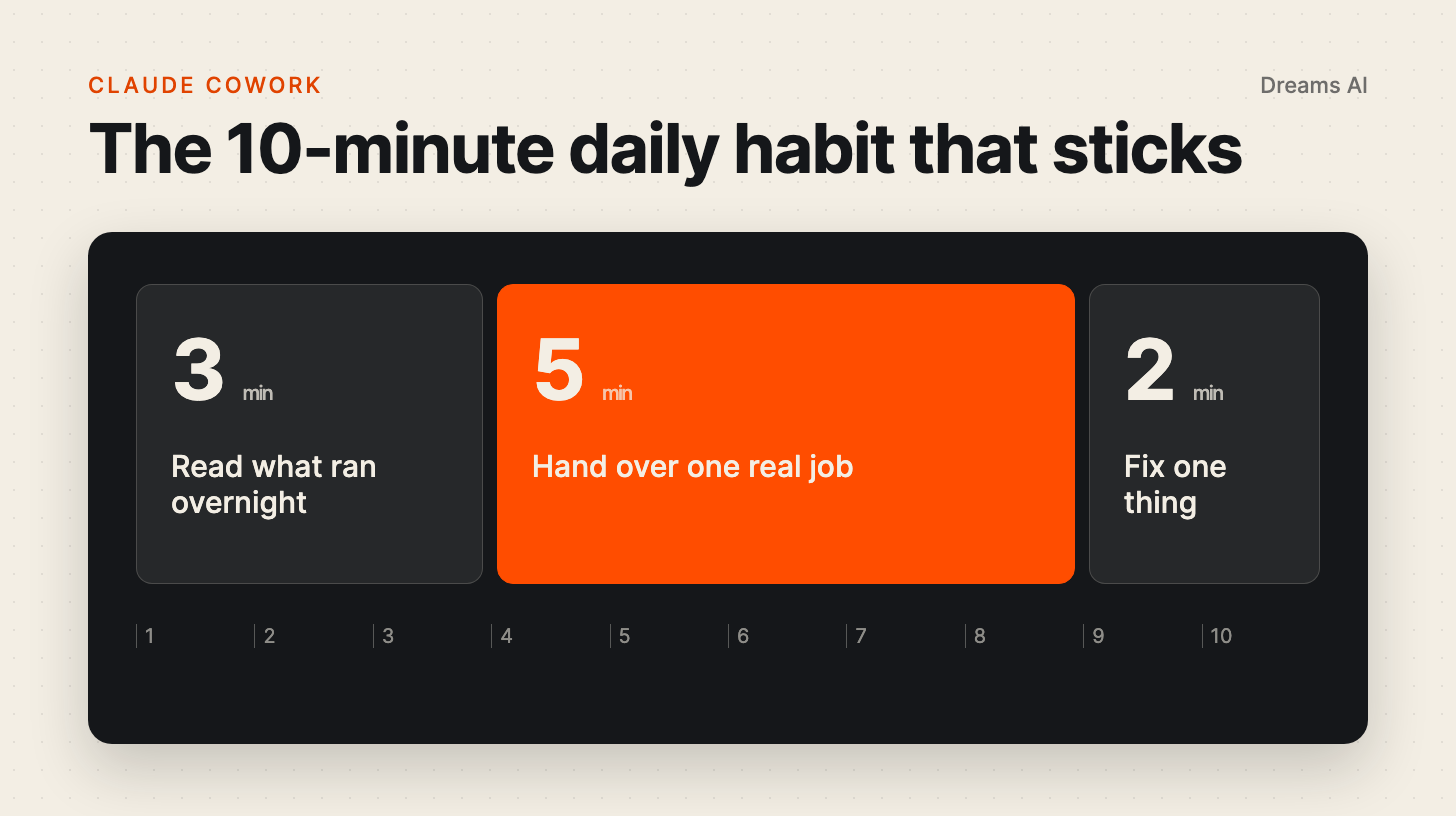
Claude Cowork habit: the 10-minute daily routine that sticks
The 10-minute Claude Cowork habit I'd give anyone who keeps forgetting to use it: one morning check,...
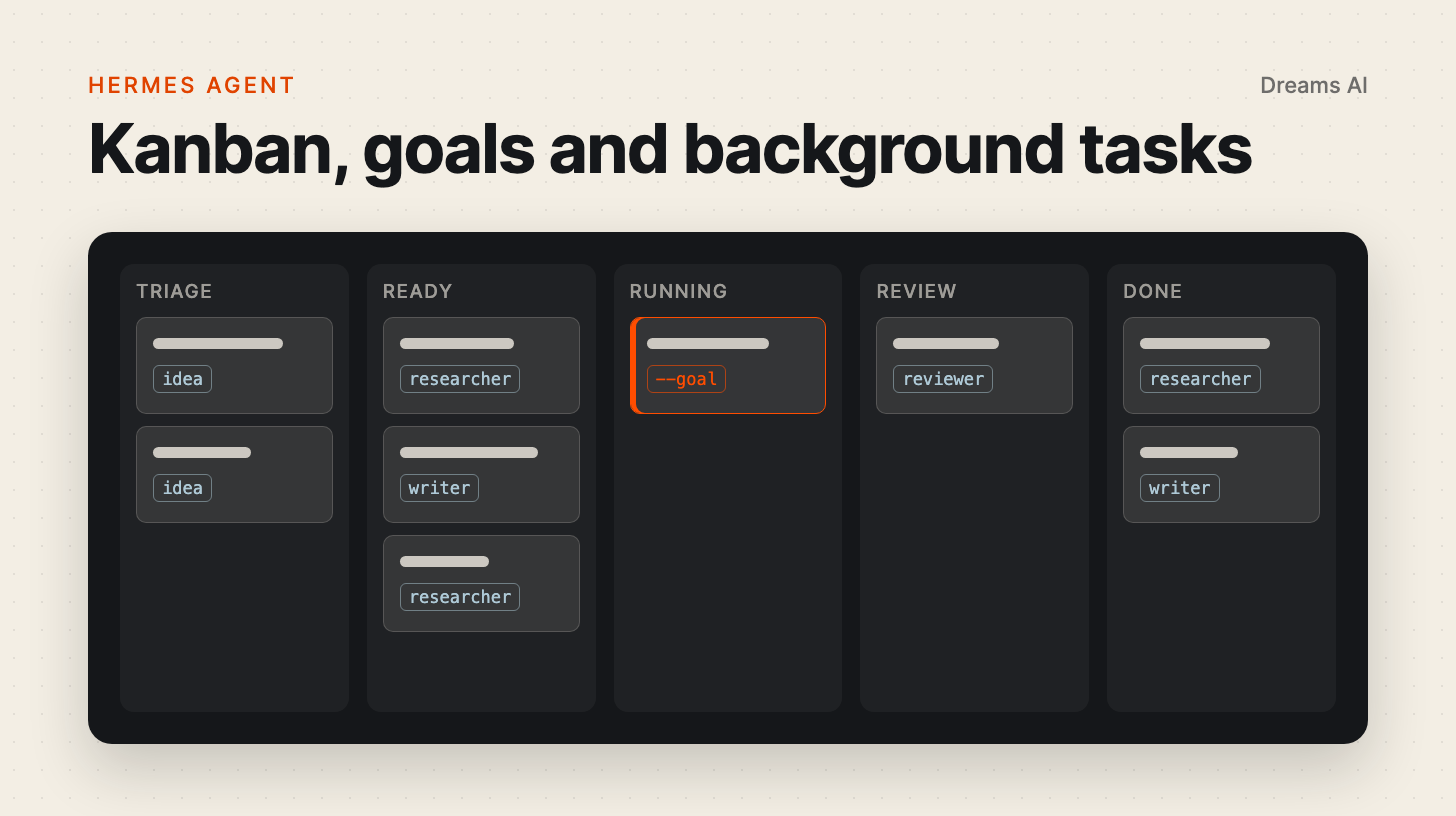
Hermes Agent kanban, step by step: five commands
Hermes Agent kanban, /goal and /bg: how they differ, the five commands to set up a board, and the go...
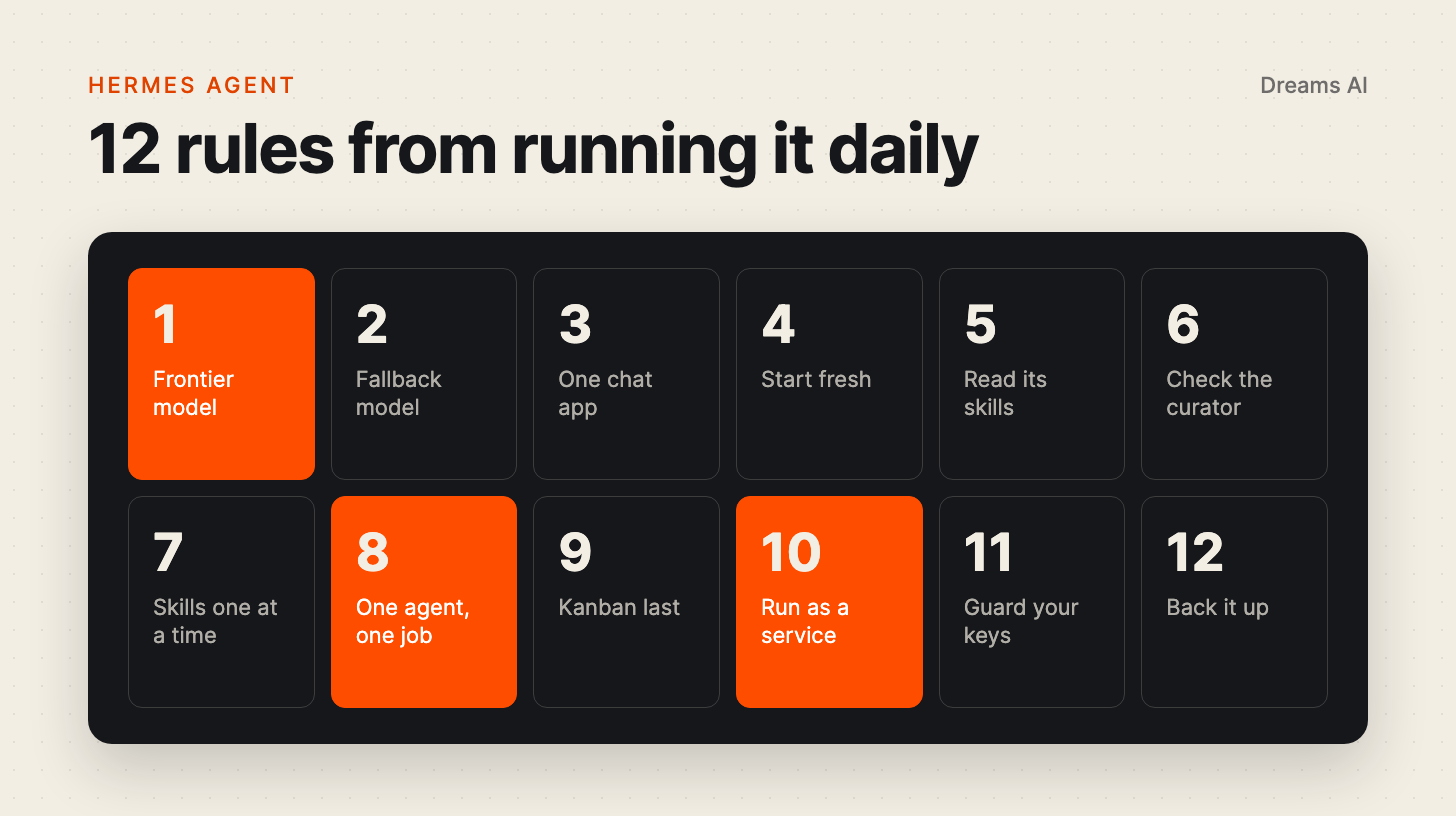
Hermes Agent best practices: 12 rules from daily use
12 Hermes Agent best practices from running it every day: model choice, pruning skills, the curator,...
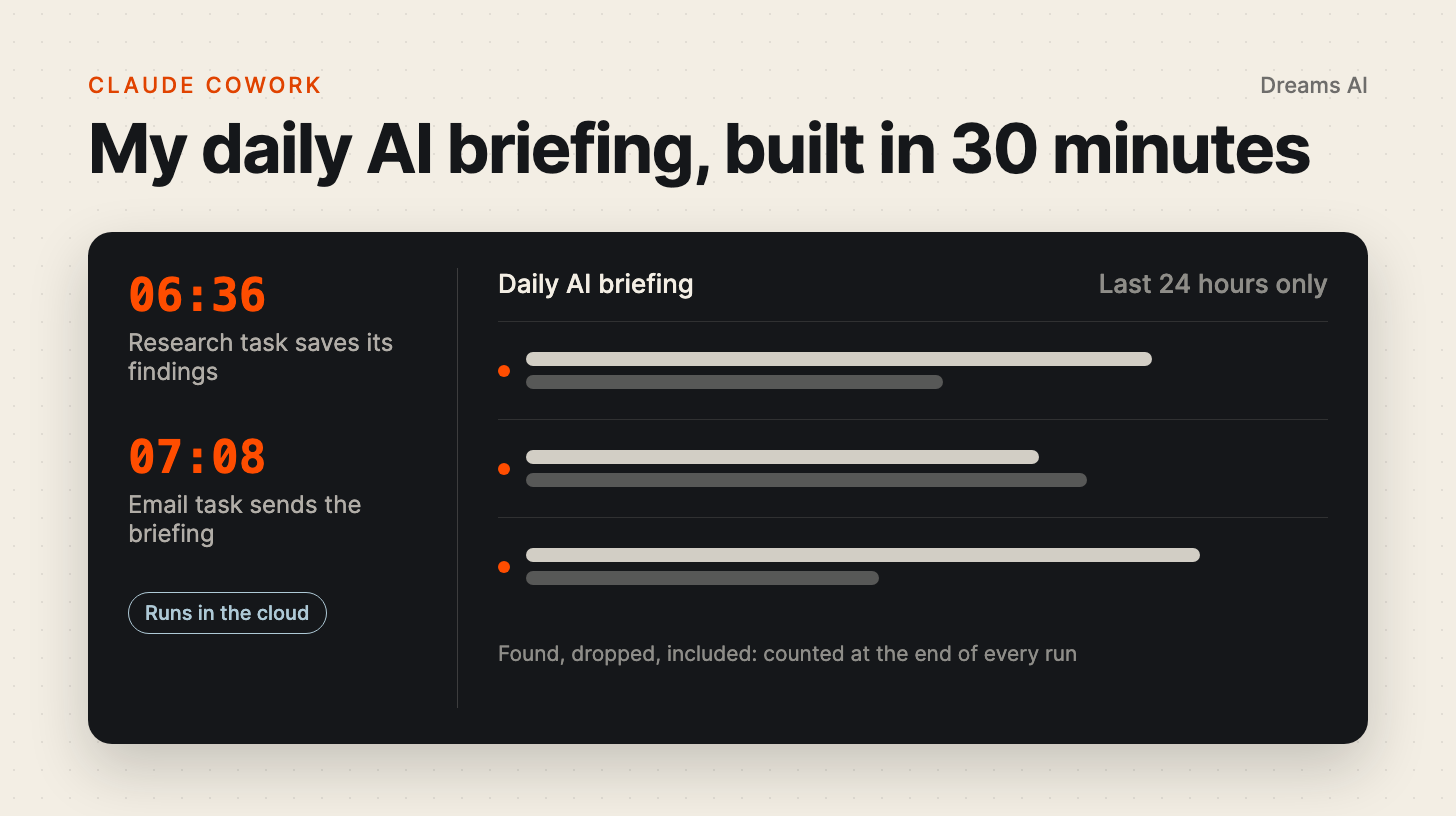
Claude Cowork scheduled tasks in the cloud: my AI briefing
Claude Cowork scheduled tasks now run in the cloud. How I rebuilt my daily AI briefing, the prompt I...