25 Claude Cowork Tips I Actually Use Every Day
By Riz Pabani on 20-Jun-2026
I've been running Claude Cowork daily since January. Content pipeline. Client research. SEO audits. File management. Browser automation. If you've already got Cowork installed and working, this post is for you. If you haven't, read the setup guide first.
What follows is everything I've learned about getting consistently good output from Cowork, in the order I'd teach it. The first eight tips are the setup that makes the next seventeen possible. Skip them and you'll spend the rest of your Cowork life writing long prompts to fight a system that wasn't told who you are.
ChatGPT rewarded prompt engineering. Cowork rewards system engineering. Build the system once and the prompts almost don't matter.
Setup & Foundations
1. Use the desktop app in Cowork mode, not the web
Cowork is a mode inside the Claude Desktop app. Not the website. Not the mobile app. The desktop one.
You'll need a paid plan — Cowork doesn't run on the free tier. I run Opus as my default model with Extended Thinking turned on. Slower per response, much better outputs for anything that involves reasoning or judgement.
Web Chat is fine for quick questions. Cowork is what you use when you want Claude to actually touch your files.
2. Build one workspace folder with the right subfolders
This is the single decision that determines whether Cowork feels like a colleague or a guessing machine.
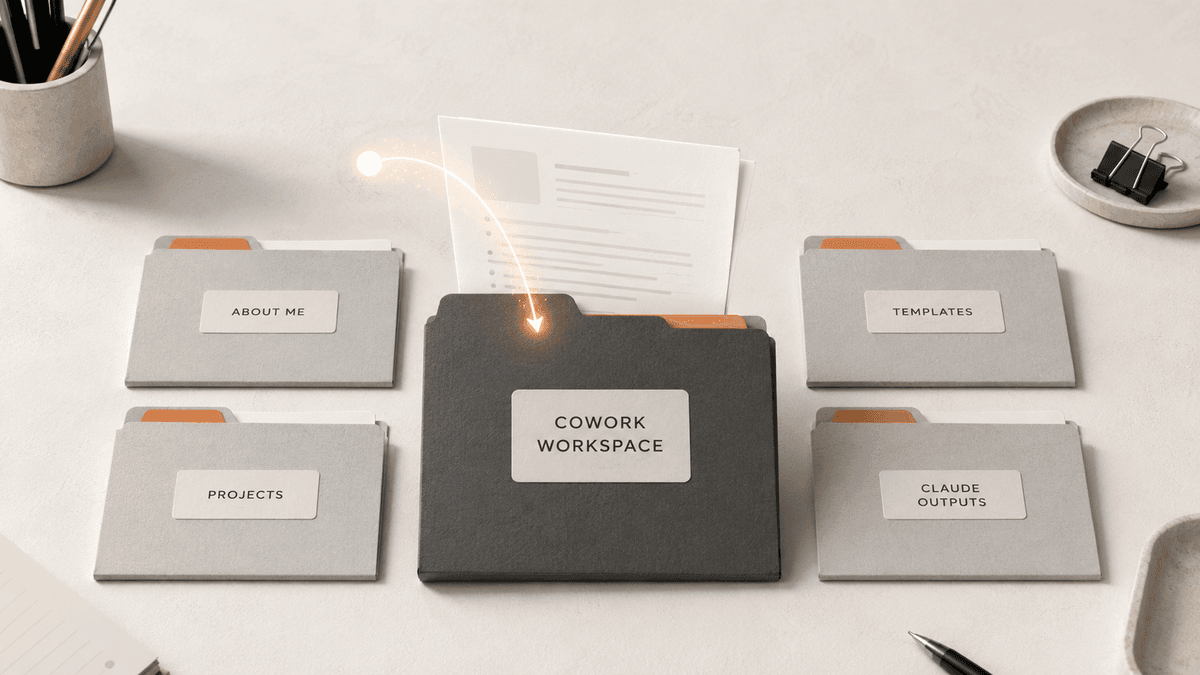
Create one folder on your computer. Point Cowork at it in Settings. Everything Cowork does happens inside this folder — that's the sandbox. Inside it, I use four subfolders:
- ABOUT ME/ — context files about who I am, how I write, what I won't do
- PROJECTS/ — one folder per active workstream
- TEMPLATES/ — reusable scaffolding (blog template, voice guide, brand checks)
- CLAUDE OUTPUTS/ — the only place Claude is allowed to create new files
The last one matters more than it looks. Telling Cowork "create new files only in CLAUDE OUTPUTS/" means your active projects don't get cluttered with draft attempts. You move things into PROJECTS/ when you've approved them.
Most people skip the folder design and dump everything at the root. Then Claude reads twelve unrelated files at the start of every session and the output drifts.
3. Write your context files — and interview yourself to get them right
Cowork is only as good as what it knows about you. Most people give it nothing and then wonder why the output sounds like a stock LinkedIn post.
I keep three files in ABOUT ME/:
- about-me.md — who I am, what I do, what I'm trying to build
- brand-voice.md — how I write. Tone, sentence rhythm, signature phrases, things I'd never say
- anti-AI-style.md — the specific words and structures that make writing sound AI-generated. Mine starts with "never use 'harness the power of', 'leverage', 'unlock', 'empower', 'cutting-edge', 'in today's rapidly evolving landscape', or any rhetorical question opener."
The trick to writing them well is to interview yourself. Open Claude. Ask it to interview you with 100 questions covering: what you believe about your industry, how you actually write (sentence length, opening patterns, what you cringe at), your hard nos, what you've changed your mind on recently, the customer stories you reach for. Answer them out loud or in writing. Paste the answers back. Ask Claude to compile them into the three files above.
Two hours of work. Every piece of writing Cowork helps you with for the rest of the year will sound more like you.
4. Set your Global Instructions
Settings → Cowork → Global Instructions. These load before everything else, on every session, in every folder.
Keep them short. About five lines is the sweet spot. Mine are roughly:
- Always read ABOUT ME/ before responding
- Default to UK English
- Show a plan before taking action
- Create new files only in CLAUDE OUTPUTS/ unless I say otherwise
- If your confidence is below 90%, say so before you act
These are universal preferences — the rules that apply whatever folder I'm working in. The point is you stop having to repeat them in every prompt.
5. Turn on Memory and use Projects for recurring work
Memory lets Cowork carry small facts between sessions — names you've corrected, preferences you've stated, decisions you've made.
Projects are folders-within-Cowork for ongoing workstreams. I have a Project for this blog, one for client research, one for personal admin. Each one keeps its own conversation history and instructions. You walk back into a Project a week later and Cowork already knows where you left off.
Without these you start every session from scratch. With them, the system gets smarter the longer you use it.
6. Install the Plugins for the work you actually do
Plugins are bundles of skills for specific domains — marketing, sales, legal, finance, data work. You'll find them in the Customise sidebar.
I keep the Marketing plugin active permanently. The SEO audit skill is the standout. It generates an HTML report with what's working, what's broken, and what to fix next. I've been making incremental improvements based on those reports for weeks and you can see my pages slowly climbing the rankings.
The content creation skill handles blog formatting, meta descriptions, and CTA patterns without me specifying the structure every time.
Install one that fits your work. Try it on a real task. You can always remove it.
7. Connect your tools — but start conservative
Connectors link Cowork to Gmail, Slack, Google Drive, Notion, Linear, and others. Once you've connected them, you can ask Cowork to read or write across those services without leaving the conversation.
I use the Gmail connector daily. "Draft a reply to the last email from [client name], polite but firm, declining the timeline." Cowork reads the thread, drafts the reply, creates it as a Gmail draft. I review, hit send. Two minutes instead of fifteen.
Start with one low-stakes connector. See how it feels. Add the next one only when you've found a workflow you actually use. The point is not to connect everything — it's to connect the two or three services where you waste time switching context.
8. Use a folder-level CLAUDE.md alongside your globals
Global Instructions cover universal preferences. CLAUDE.md covers project-specific context — and it's the file that matters most once you're past setup.
CLAUDE.md is a markdown file at the root of a folder. Cowork reads it at the start of every session in that folder. It's your standing instructions for the project — the stuff you'd tell a new colleague that you never want to repeat.
How I structure mine: first two sentences cover what this workspace is for. Then rules that never change in this project (UK English, voice guide path, no Oxford commas, whatever). Then current priorities — what I'm working on this week, which files matter, what's blocked. Then tool-specific instructions: when creating spreadsheets use these column headers; when writing posts follow the template at this path.
The whole file is about 40 lines. I update the priorities section every Monday. Takes two minutes.
Make it self-maintaining. Add one line: "When I correct you during a session, suggest adding that correction to this file." Now Cowork updates its own instructions. I correct something, Claude says "Want me to add that to your CLAUDE.md?" I say yes. Done. The file grows smarter without me having to remember to update it.
Prompting & Workflow
9. Describe the outcome, not the steps
This is the biggest prompting shift between Chat and Cowork.
In Chat, you tell Claude what to write. In Cowork, you tell it what you want to be true at the end.
Bad: "Open Downloads. Look at each file. Decide if it's a screenshot or a document. Move screenshots to a folder called Screenshots. Move documents to a folder called Documents. Rename them by date."
Good: "Organise my Downloads folder by type and date, and give me a one-page report of what you moved where."
Cowork is good at planning the steps. It's bad at being micromanaged. Once you trust it with outcomes, your prompts shrink to a sentence.
10. Start every non-trivial task with AskUserQuestion
This is the single best prompting pattern I've found for Cowork.
Instead of writing a detailed prompt, start with: "I want to [task]. Read all files in this folder first. Then ask me clarifying questions using AskUserQuestion before you execute. Do not guess."
Cowork reads your context, thinks about the task, then generates clickable multiple-choice questions to pin down exactly what you want. You click answers instead of typing paragraphs. Then it executes.
This works because Cowork knows things about your folder that you'd forget to mention. It asks about files you didn't think to reference. It surfaces decisions you didn't know you needed to make.
I use this for anything where the brief is vague. "Help me with the blog" becomes a five-question interview that produces a specific, well-scoped task.
11. Batch related tasks into one session
Cowork keeps everything it's done in a session in working memory. If you split related tasks across three sessions, it has to re-read context three times.
I batch. Monday morning I open one Cowork session and run through: review the weekend's signals, update the patterns doc, prune the ideas backlog, draft the week's LinkedIn posts. One context load. Four outputs.
Same applies to client work. One session per project, not one session per task within a project.
12. Review the plan before you let it execute
When Cowork is about to do something with side effects — moving files, sending an email, posting to Slack — it shows you the plan first. Read it.
Most of the time you click approve. Occasionally you spot it about to do the wrong thing — wrong recipient, wrong folder, wrong file. Catching that takes ten seconds. Undoing it takes an hour.
For trusted workflows I've run a hundred times, I'll turn on "Act without asking" for that session. For anything new, I always read the plan.
13. Use sub-agents for parallel work
For tasks with independent parts, Cowork can spin up multiple agents working at the same time.
I use this for competitive analysis. Instead of researching five competitors one at a time, I tell Cowork to spin up five sub-agents, one per company. Results come back together in a fraction of the time.
Same pattern works for processing multiple documents, running checks across several files, or generating variants of the same draft for comparison. If the parts don't depend on each other, parallelise them.
14. Save reusable workflows as Skills
When you find a workflow that works — anti-AI-style check on a draft, a weekly content review, a competitor teardown — save it as a Skill. Skills are short instruction files that you can invoke with a slash command.
I have one called /anti-ai-check that runs my draft against my anti-AI-style.md rules and flags every violation with a suggested rewrite. Three months ago this was a 400-word prompt I copy-pasted. Now it's /anti-ai-check and a filename.
The first time you do something is a prompt. The third time is a Skill.
15. Use /schedule for recurring tasks
Type /schedule in any Cowork session and Claude walks you through creating a recurring task.
My favourite is an AI news research task that runs at 6am. It checks the websites and researchers I follow and gives me the lowdown in one place. Before this I'd spend 20 minutes scrolling feeds and getting distracted. Now I open my laptop and the summary is waiting.
I also have one that reviews my content calendar every Monday and flags anything overdue. And a third that pulls my Google Search Console data weekly and compares it to the previous week.
The catch: scheduled tasks only run when your machine is on and Claude Desktop is open. They're not cron jobs. I leave Claude Desktop running during work hours and my morning tasks fire when I open my laptop.
That 6am research task is the one people ask about most. I've broken down how to build Claude Cowork daily tasks properly, with the prompts and the mistakes that cost me the first month.
16. For content work: examples, roles, options, iteration
Four prompting habits specifically for writing tasks, in order:
- Examples beat instructions. Don't describe the voice — paste two examples and say "match this." Don't describe the structure — paste a template.
- Assign a role. "You're the editor at a small business magazine writing for owner-managers." A role narrows the model's output more than any style rule.
- Ask for options, not an answer. "Give me three opening hooks, each in a different angle." You'll pick the best in 30 seconds. The model can't pick for you.
- Never accept the first draft. Iterate at least twice. The first draft is the model's prior; the second is what happens when you tell it what's wrong with the first.
17. Combine modes: Chat for quick, Cowork for files
Cowork is overkill for "what does 'opex' mean" or "translate this into French." Use Chat for those.
Cowork earns its keep when the task touches multiple files, takes more than three steps, or needs your context. If your prompt fits in one sentence and the answer is one sentence, you're in the wrong mode.
I have both open. Chat for the quick stuff, Cowork for the work.
Best Practices & Advanced
18. Pick the right model — and turn on Extended Thinking
Cowork lets you switch models mid-session. Most people pick one and forget about it.
Opus 4.8 is best for judgement calls, multi-step reasoning, and writing that needs to sound like a specific person. I use it for content, strategy, and analysis. Sonnet is faster and cheaper on your usage limits. I use it for file organisation, simple document creation, and data extraction.
My rule: if I'd spend more than five minutes reviewing the output, I use Opus. If I'd glance at it and move on, Sonnet is fine.
Turn on Extended Thinking when you're using Opus. It forces the model to reason before answering. The outputs are noticeably better for anything that requires planning or nuance. Slower, but worth it.
19. Watch your usage
Cowork is compute-heavy. Every session reads files, calls tools, and runs sub-agents. It chews through your usage limits faster than Chat does.
This isn't a reason to avoid it — it's a reason to reserve it for the work that justifies it. File-heavy tasks, multi-step research, anything where you'd otherwise have ten tabs open. Don't burn Cowork capacity on "summarise this paragraph."
Keep an eye on the usage indicator. If you're hitting limits, you're either using Cowork for the wrong kind of task, or you need to step up your plan.
20. Security: dedicated folder, ask before acting, no sensitive files at the start
Cowork runs in a lightweight VM. It can see your designated workspace folder and your browser. It can't touch the rest of your computer.
I've seen people complain about that. It's the reason I let Cowork reorganise files, create documents, and use my browser autonomously. If something goes wrong, the blast radius is one folder. Compare that to tools that run with full system access.
Three rules I'd start anyone with:
- Keep everything Cowork needs inside the workspace folder. If it needs a file from elsewhere, copy it in.
- Leave "Ask before acting" on for the first few weeks. Turn it off per-workflow once you trust the pattern.
- Don't dump highly sensitive files into the workspace on day one. Get comfortable with the boundaries first.
Cowork always asks before deleting things. That's the one guardrail it ships with by default.
21. Carry context across sessions with context.md
CLAUDE.md is for stable project rules. context.md is for what's actually going on right now.
I keep one in every active project. It's a running log: what I worked on yesterday, what I'm trying to do next, decisions I've made, things I'm blocked on. Cowork reads it at the start of every session and writes to it at the end.
The trick is to tell Cowork — in CLAUDE.md — to always read context.md first and update it at the end of the session. Now your context is self-maintaining.
This is the difference between Cowork feeling like a new colleague every morning and feeling like the same one you worked with yesterday.
22. Dictate your prompts
Cowork takes voice input. The desktop app has a microphone icon; macOS also has system-level dictation (Fn key twice).
I dictate prompts when I'm walking, washing up, or pacing the office. Spoken prompts are longer, more contextual, and more specific than typed ones. You explain the situation properly instead of compressing it into a sentence.
Cowork's output quality is roughly proportional to the quality of your input. Dictation raises the quality of the input.
23. Naming conventions: boring is good
A clean folder of files with descriptive names is the easiest performance gain you'll get from Cowork.
Filenames Cowork can read: 2026-06-brand-voice-guide.md, acme-corp-proposal-v2.md, q2-content-calendar.xlsx.
Filenames that make Cowork guess: notes.md, draft-final-v2-FINAL.md, Untitled (3).docx.
Pick a naming convention. Something like [project]_[type]_v[N].[ext]. Use it consistently. Cowork uses filenames to decide what's relevant — and bad names produce bad relevance judgements.
24. Troubleshooting: 15 seconds, one window, pin your workspace
Three issues people hit in their first month:
- VM "still starting" errors. Cowork boots a sandbox in the background. If you start typing the moment Cowork opens, you'll get a startup error. Wait 15–20 seconds. Retry. It almost always works second time.
- Multiple Cowork tabs talking to themselves. Don't open Cowork in two windows for the same workspace. State gets confused. One workspace, one window.
- Workspace switching mid-task. Pin your workspace in the Cowork header. When you switch folders mid-session by accident, you'll see it. Easy to undo if you catch it early.
None of these are bugs in your workflow. They're just where the rough edges currently sit.
25. Iterate your setup like training an employee
The biggest mindset shift, and the one I wish someone had told me on day one.
Cowork isn't a tool you configure once. It's an employee you train. The first week is the worst. You'll see mistakes. You won't be sure what's wrong. The fix is almost never a longer prompt — it's a new line in CLAUDE.md or anti-AI-style.md.
Every time Cowork does something I don't like, I do one of three things:
- Add a line to CLAUDE.md or the global instructions so it never happens again
- Update a context file in ABOUT ME/
- Save a Skill so the corrected workflow is reusable
After three months of doing this, I've added maybe 40 corrections across the system. Now I rarely need to fix anything in real time. Cowork knows my preferences before I've typed a word.
Start simple. File organisation, then research synthesis, then content drafting, then full multi-step workflows. The advanced workflows (multi-agent + connector-stacked, end-to-end automations) only earn their keep once the basics are stable.
Why all of this matters
Every tip here follows the same principle. Spend 30 minutes on configuration. Save hours across every future session.
The people struggling with Cowork are writing long, detailed prompts for every task and getting inconsistent results. The people getting good output spent half an hour on workspace structure, CLAUDE.md, context files, plugins, and connectors, and now write ten-word prompts that produce usable work.
ChatGPT rewarded prompt engineering. Cowork rewards system engineering. Build the system once and the prompts almost don't matter.
If you want to skip the trial-and-error, my Cowork setup sessions are 90 minutes start-to-finish. Workspace structured, CLAUDE.md written, context files generated from a guided interview, plugins configured, connectors linked, workflows running. You leave with a system, not a chatbot.
Not sure if that's what you need? Message me. I'll tell you honestly.
Related Articles
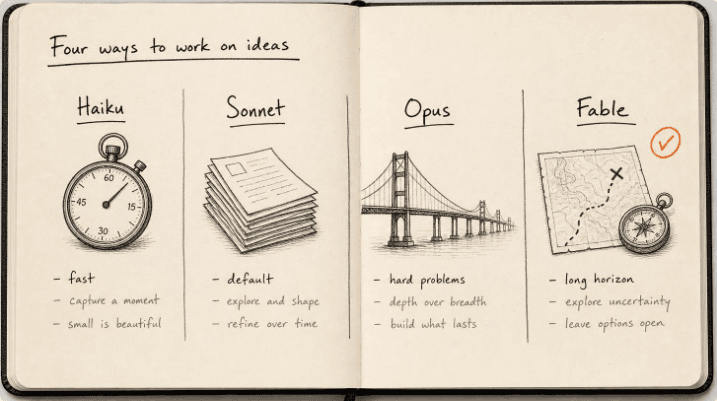
Claude models compared 2026: Fable, Opus, Sonnet, Haiku
The Claude models compared for 2026: what Fable 5.1, Opus 5, Sonnet 5 and Haiku 4.5 each do best, wh...
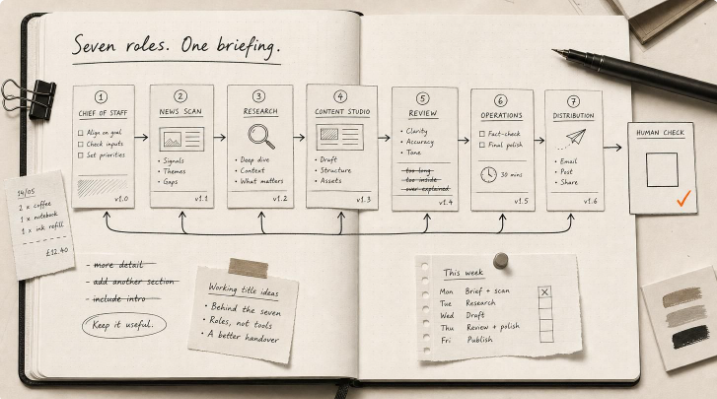
Hermes Agent Bot Mode: how I run a fleet of AI bots
Hermes Agent bot mode: seven AI bots that research, draft and review each other's work, and why none...
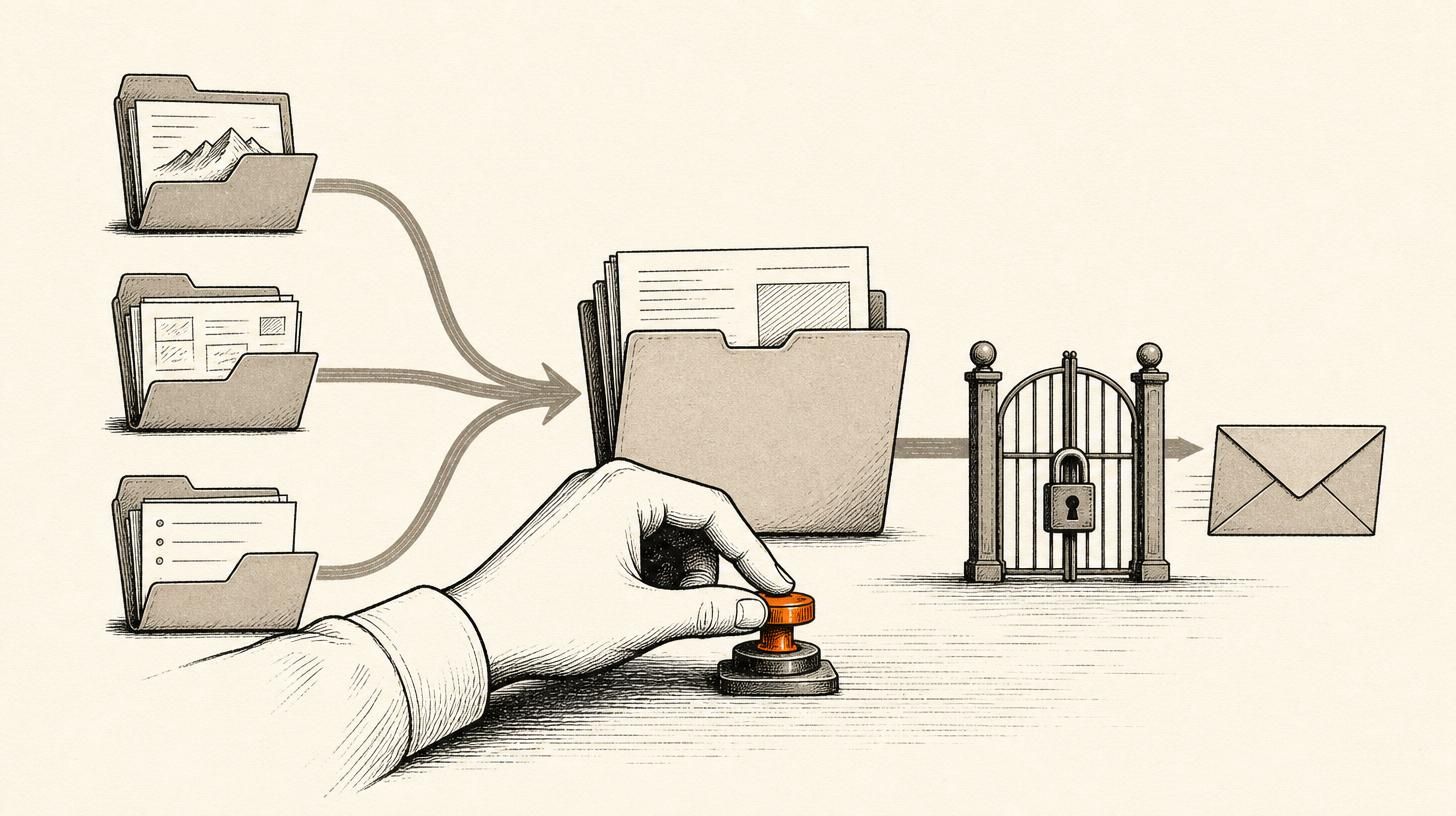
How I set up Grok Bot (and what I use it for)
How I set up Grok Bot: a Chief of Staff bot, three specialists, a weekly cadence, and a hard human g...

How I Rank on Google Using Claude Cowork
I'm not an SEO expert. Here's the Claude Cowork workflow Claude and I built to rank on Google — and ...