Claude Cowork Tips: Configuration, Prompts & Best Practices
By Riz Pabani on 21-Mar-2026

Claude Cowork Tips I Actually Use Every Day
I've been running Claude Cowork daily since January. Content pipeline, client research, SEO audits, file management, browser automation. If you've already got it installed and working, this post is for you. If you haven't, read the setup guide first.
What follows is everything I've learned about getting consistently good output from Cowork, organised by what actually moves the needle.
Your CLAUDE.md File Is the Whole Game
If you only do one thing from this post, do this one.
CLAUDE.md is a markdown file that sits in your workspace folder. Cowork reads it at the start of every session. It's your standing instructions — the stuff you'd tell a colleague on their first day that you never want to repeat.
Most people either skip it entirely or write a few vague lines. Both are mistakes.
Here's how I structure mine. First two sentences cover who I am and what this workspace is for. Not a biography. Just enough that Claude knows whether it's working on blog content or client research.
Then a section for rules that never change: UK English, first person, no filler language, always ask before deleting files, always show a plan before executing. These are the things I was correcting in every single session before I wrote them down.
Then current priorities. What I'm working on this week. Which files matter. What's blocked. I update this every Monday morning. Takes two minutes.
Finally, tool-specific instructions. When creating spreadsheets, use these column headers. When writing blog posts, follow the voice guide at this path. When checking SEO, use these specific metrics.
The whole file is about 40 lines. Every time Claude does something I don't like, I add one line to CLAUDE.md. Permanent fix. I've added maybe 15 corrections over two months. Now I rarely need to fix anything.
Before I added the line about UK English, every draft came back with "organization" and "color". One line in CLAUDE.md fixed it forever.
Make CLAUDE.md Self-Maintaining
Add one line to your CLAUDE.md: "When I correct you during a session, suggest adding that correction to this file."
Now Cowork updates its own instructions. I correct something, Claude says "Want me to add that rule to your CLAUDE.md?" I say yes. Done. The file grows smarter without me having to remember to update it.
Global Instructions vs CLAUDE.md — Use Both
People confuse these. They're different.
Global instructions (Settings > Cowork > Global Instructions) load before everything else. Before your files. Before your CLAUDE.md. They apply to every session, every folder, every task.
CLAUDE.md lives in a specific folder and applies only when you're working in that folder. It's project-specific context.
I keep my global instructions short — about five lines. "Always read context files before responding. Ask clarifying questions using AskUserQuestion before executing. Show a plan before taking action. Default to UK English. If confidence is below 90%, say so."
My CLAUDE.md files are longer and specific to each workspace. I have one for this site, one for client work, one for personal projects. Each folder gets its own context.
The combination means Claude knows my universal preferences (global) and my project-specific rules (CLAUDE.md) before I've typed a single word.
Pick the Right Model for the Task
Cowork lets you switch models mid-session. Most people pick one and forget about it.
Opus 4.6 is best for judgement calls, multi-step reasoning, and writing that needs to sound like a specific person. I use it for content, strategy, and analysis.
Sonnet is faster and cheaper on your usage limits. I use it for file organisation, simple document creation, and data extraction.
My rule: if I'd spend more than five minutes reviewing the output, I use Opus. If I'd glance at it and move on, Sonnet is fine.
Turn on extended thinking when you're using Opus. It forces the model to reason before answering. The outputs are noticeably better for anything that requires planning or nuance. Slower, but worth it.
Plugins Are Underrated
Plugins are bundles of skills for specific domains. You'll find them in Settings > Plugins.
I keep the Marketing plugin active permanently. The SEO audit skill is the standout. I run it on my site and it generates an HTML report with scoring, what's working well, and what needs fixing. It pulls in Google keyword data, Search Console stats, and Analytics, and gives it to you straight. No fluff. I've been making incremental improvements based on those reports for weeks now and I can see my pages slowly climbing the rankings.
The content creation skill is useful too. It handles blog formatting, meta descriptions, and CTA patterns without me specifying the structure every time.
Install one that fits your work. Try it on a real task. You can always remove it.
Connectors Change What Cowork Can Do
Connectors link Claude to external services. Gmail, Slack, Linear, Google Drive, and others.
I use the Linear connector daily. My task list lives in Linear. But I never open Linear to update it. I tell Cowork "mark the blog post task as done and create a follow-up for social distribution" and it handles the update. The task board stays current without me touching it.
The Gmail connector means I can say "draft a reply to the last email from [client name], polite but firm, declining the timeline" and Claude reads the thread, drafts the reply, and creates it as a Gmail draft. I review it, hit send. Two minutes instead of fifteen.
The catch: connectors require you to authorise access. Some people are nervous about this. Fair enough. Start with one low-stakes connector and see how it feels.
Scheduled Tasks Are Quietly Powerful
I type /schedule in a Cowork session and Claude walks me through creating a recurring task.
My favourite is an AI news research task that runs every morning at 6am. It checks my favourite websites and the researchers I follow, and gives me the lowdown in one place. Before this, I'd spend 20 minutes scrolling through feeds and getting distracted. Now I open my laptop and the summary is waiting. One read, done.
I also have one that reviews my content calendar every Monday and flags anything overdue. And a third that pulls my Google Search Console data weekly and compares it to the previous week.
The limitation: scheduled tasks only run when your machine is on and Claude Desktop is open. They're not cron jobs. Plan around that. I leave Claude Desktop running during work hours and my morning tasks fire when I open my laptop.
The AskUserQuestion Trick
This is the single best prompting pattern I've found for Cowork.
Instead of writing a detailed prompt, start with:
"I want to [task]. Read all files in this folder first. Then ask me questions using AskUserQuestion before you execute. Do not guess."
Claude reads your context, thinks about the task, then generates clickable multiple-choice questions to clarify exactly what you want. You click answers instead of typing paragraphs. Then it executes.
This works because Cowork knows things about your folder that you might forget to mention. It asks about files you didn't think to reference. It surfaces decisions you didn't know you needed to make.
I use this pattern for anything where the brief is vague. "Help me with the blog" becomes a five-question interview that produces a specific, well-scoped task.
Use Sub-Agents for Parallel Work
For tasks with independent parts, Claude can spin up multiple agents working simultaneously.
I use this for competitive analysis. Instead of researching competitors one at a time, I tell Cowork to research five in parallel. Each sub-agent handles one company. The results come back together in a fraction of the time.
Same pattern works for processing multiple documents or running checks across several files. If the parts don't depend on each other, parallelise them. Works best on Opus 4.6.
File Structure Matters More Than You Think
Your folder structure is how Cowork understands your work. A messy folder produces messy output.
My workspace has a consistent structure:
- CLAUDE.md at the root (standing instructions)
- docs/ for reference material (voice guide, templates, strategy docs)
- drafts/ for work in progress
- content-engine/ for performance data and patterns
- research/ for incoming signals and raw material
Every file has a descriptive name. Not notes.md. Not draft-v2-final-FINAL.md. Something like claude-cowork-tips-draft.md. Claude uses filenames to decide what's relevant. Bad names mean bad relevance judgements.
The Sandbox Is a Feature, Not a Bug
Cowork runs in a lightweight VM. It can see your workspace folder and your browser. It can't touch the rest of your filesystem.
I've seen people complain about this. But it's the reason I let Cowork reorganise files, create documents, and use my browser autonomously. If something goes wrong, the blast radius is one folder. Compare that to tools like OpenClaw that run with full system access.
Keep everything Cowork needs inside your workspace folder. If it needs a file from elsewhere, copy it in.
Why All of This Matters
Every tip here follows the same principle. Spend 30 minutes on configuration. Save hours across every future session.
The people struggling with Cowork are writing long, detailed prompts for every task and getting inconsistent results. The people getting good output spent half an hour on CLAUDE.md, connectors, and plugins, and now write ten-word prompts that produce usable work.
ChatGPT rewarded prompt engineering. Cowork rewards system engineering. Build the system once and the prompts almost don't matter.
If you want to skip the trial-and-error, my Cowork setup sessions are 90 minutes start-to-finish. CLAUDE.md written, plugins configured, connectors linked, workflows running.
Not sure if that's what you need? Message me. I'll tell you honestly.
Related Articles
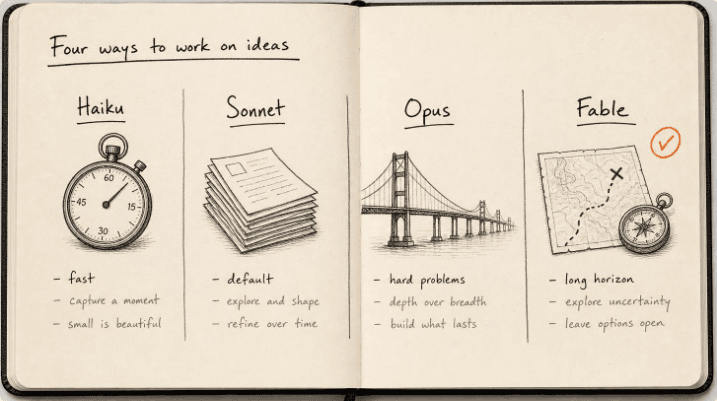
Claude models compared 2026: Fable, Opus, Sonnet, Haiku
The Claude models compared for 2026: what Fable 5.1, Opus 5, Sonnet 5 and Haiku 4.5 each do best, wh...
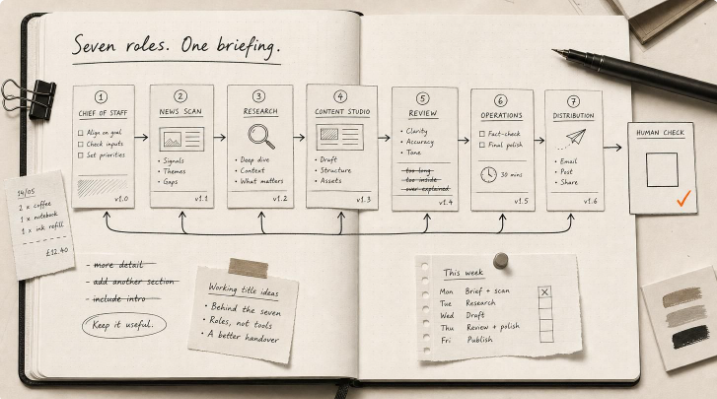
Hermes Agent Bot Mode: how I run a fleet of AI bots
Hermes Agent bot mode: seven AI bots that research, draft and review each other's work, and why none...

How I set up Grok Bot (and what I use it for)
How I set up Grok Bot: a Chief of Staff bot, three specialists, a weekly cadence, and a hard human g...

How I Rank on Google Using Claude Cowork
I'm not an SEO expert. Here's the Claude Cowork workflow Claude and I built to rank on Google — and ...