How to Build a Second Brain in Obsidian Using AI
By Riz Pabani on 07-Apr-2026
I built a second brain using Karpathy's method. Here's exactly how.
Open your Downloads folder right now. Go on. I'll wait.
If it looks anything like mine did three weeks ago, it's a graveyard. PDFs you saved once and never opened. Screenshots with names like IMG_4291.png. Meeting notes exported from Fathom that you swore you'd file somewhere. Bookmarks you'll definitely get back to. Random .docx files named final_v3_FINAL.docx.
Everyone's desktop or downloads folder tells the same story: you captured the thing, but you never did anything with it. The information went in. It never came back out.
Andrej Karpathy (one of the founders of OpenAI, former head of AI at Tesla) posted something a few weeks ago that caught my attention. He said he'd stopped using AI mainly for writing code. Instead, he was using it to build what he called an "LLM Wiki." A second brain made of Markdown files, maintained entirely by an AI agent. You dump raw material in. The agent reads it, organises it, links it to what's already there, and keeps the whole thing updated as new stuff arrives.
His research wiki on a single topic grew to 100 articles and 400,000 words. The agent wrote all of it.
I read his method, liked the core idea, and built my own version. Not a clone. I adapted it to how I actually work. It runs in Obsidian with Claude as the agent. And the messy downloads folder problem? That's the entry point. Everything starts in the inbox.
Here's how the whole thing works.
The idea: your AI agent and your notes live in the same folder
Most people use AI tools and note-taking apps separately. You chat with ChatGPT in one window and write notes in Notion or Apple Notes in another. The two systems don't talk to each other. Your AI has no memory of what you know. Your notes have no AI processing them.
Karpathy's insight was simple. Put them in the same folder. When your AI agent can read and write the same files you use for notes, it becomes part of the system. It's a colleague who sits inside your filing cabinet.
I use Obsidian for the notes and Claude (via Cowork) as the agent. Obsidian is a free app that stores everything as plain Markdown files in a folder on your computer. No cloud database. No proprietary format. Just text files in folders. That's what makes it work. Claude can read and write Markdown natively. No plugins. No API integrations. Just point Claude at the folder.
The folder structure: PARA
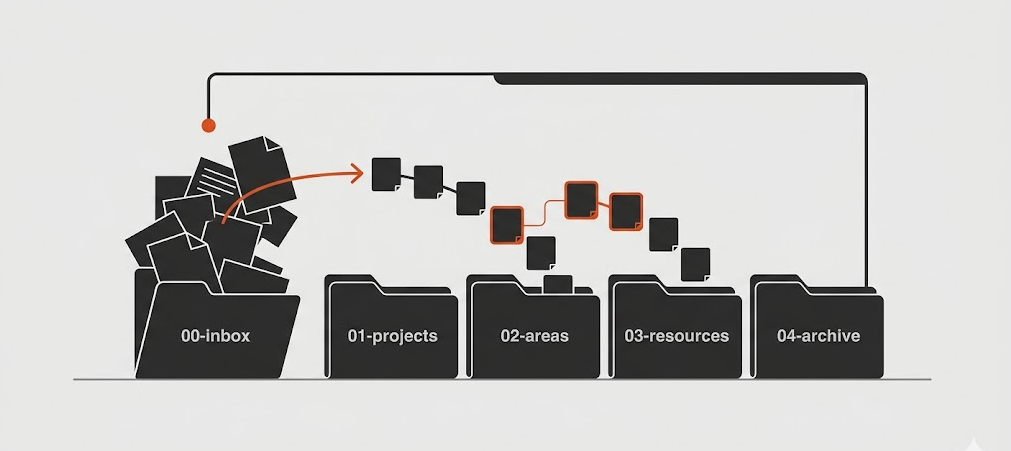
I use a system called PARA, which stands for Projects, Areas, Resources, and Archive. It was originally created by Tiago Forte for organising digital information. Here's what mine looks like:
00-inbox/       → The dump zone. Everything lands here first.
01-projects/    → Active work with clear outcomes and deadlines.
02-areas/       → Ongoing life areas (work, health, finance, personal).
03-resources/   → Reference material: articles, book notes, tools.
04-archive/     → Completed projects. Never delete, always archive.
templates/      → Note templates that enforce consistent structure.
The numbers are there so the folders always sort in the same order. That's it. No cleverness.
Inside 01-projects/, each project gets its own folder. Mine has things like client project folders with meeting notes, action items, and research all in one place. Inside 02-areas/, I have subfolders for work, health, finance, and personal stuff. Inside 03-resources/, I keep article summaries, book notes, and tool references.
Every note is a Markdown file. Every note has a small header (called frontmatter) with the title, date, tags, and links to related notes. Here's what that looks like:
---
title: Note Title
date: 2026-04-07
tags: [meeting, client-name]
status: active
source: fathom
related: ["[[related-note]]"]
---
This is what lets the agent navigate the system. It can search by tag, filter by date, follow the related links. Without it, the vault is just a pile of text files.
The inbox trick: why this actually sticks
Most "second brain" systems fail for one reason. They require you to organise things in the moment you capture them. You save a PDF and immediately need to decide: is this a project resource? A reference? Should I tag it?
Nobody does that. You're in the middle of something. You just want to save the thing and get back to work.
The inbox fixes this. 00-inbox/ is the dump zone. There's literally a note in mine that says:
# Inbox — Capture Zone

Dump anything here — thoughts, links, email saves,
voice transcripts, random ideas.

Don't organise here. Just capture.

When you have a spare minute, tell Claude:
"Process my inbox."
That's it. No filing system. No tags. No decisions. Just dump and move on.
Then, when you have a minute, or when you're between tasks, you tell Claude: "Process my inbox."
Claude reads everything in the inbox. For each item, it figures out what it is. A meeting note goes to the right project folder. An article goes to resources. A random idea gets tagged and filed. Claude adds the frontmatter, the tags, the links to related notes, and moves the file to the right place.
Here's what the first real test looked like. I grabbed my Fathom API key, pulled my last 50 meeting notes, and dumped the whole lot into the inbox as raw text files. Names, transcripts, action items. Completely unprocessed. Then I said "process my inbox."
In a single pass, Claude sorted them across eight different project folders and four life areas. Every note got proper metadata. Every project index got updated with links to the new notes. The wiki index got updated too.
One example. A raw transcript from a client meeting was sitting in the inbox as a text file. Claude read it, created a clean meeting note with the date, attendees, and agenda filled in, filed it under the right project folder, and linked it to the previous meeting notes for that client automatically. It also picked up two action items from the transcript and added them to the project's index summary. I didn't tell it to do any of that. It followed the instructions in AGENTS.md.
That would have taken me an afternoon. Maybe longer. I'd have given up halfway through and left half of them in the inbox forever. Claude did it in minutes. And because it follows the same rules every time, the output is more consistent than if I'd done it myself.
If you'd rather map this for your business and build it together instead of doing it solo, that's what the AI Opportunity Map is for: a live 60-minute session where we map where AI saves you time and build your biggest win on your own accounts, so you leave with it running. £199. See what's included →
The agent instructions: AGENTS.md
This is the part that makes the system work without supervision.
In the root of the folder, there's a file called AGENTS.md. It's the instruction manual for Claude. Every time Claude opens the folder, it reads this file first. It tells Claude:
- What the folder structure means
- How to handle different types of requests ("organise this", "summarise X", "create a new project")
- What format to use for new notes (frontmatter, tags, wikilinks)
- How to process the inbox step by step
- What to update after every change (the wiki index, the operations log, all affected pages)
The file is about 170 lines. I didn't write it from scratch. I started with Karpathy's LLM Wiki concept, adapted it to the PARA structure, and refined it over a few sessions as I found gaps. It now handles six types of request: inbox processing, queries, note creation, project planning, information capture, and system health checks.
The effect is that Claude doesn't just dump files into folders. It maintains the system. It updates cross-references. It keeps a log of every operation. It flags contradictions between notes. It's doing the tedious bookkeeping that makes a knowledge base actually useful over time. The stuff nobody has the discipline to do manually.
I've published the full AGENTS.md I use, along with every template and the inbox workflow, in the second brain setup guide.
Templates: why every note looks the same
Every new note Claude creates starts from a template. I have five: project, meeting, article, daily note, and idea. Each one has the right frontmatter fields, the right section headers, and placeholder text that tells Claude (or me) what goes where.
This matters more than it sounds. Without templates, Claude improvises structure. One meeting note has "Attendees" at the top, the next has it at the bottom, the third doesn't have it at all. With templates, every meeting note looks identical. You can scan 30 of them in minutes because your eyes know where to look.
Here's my meeting note template (save it as templates/template-meeting.md):
---
title: Meeting — {{title}}
date: {{date}}
tags: [meeting]
status: active
attendees: []
source: manual
related: []
---

# Meeting — {{title}}

**Date:** {{date}}
**Attendees:**

## Agenda
1.

## Notes


## Decisions
-

## Action items
- [ ] @who — task — by when

## Links
- Related: [[]]
The {{title}} and {{date}} placeholders get filled in automatically by Obsidian's Templater plugin (or by Claude when it creates the note). The structure never changes. Every meeting note in my vault has the same sections in the same order.
The wiki layer: index + log
On top of PARA, I added two system files from Karpathy's pattern.
index.md is a catalogue of every page in the vault. One-line summary, wikilink to the page, organised by category. When Claude needs to answer a question about something in the vault, it reads the index first to find relevant pages, then drills into them. It's a table of contents that the agent uses as its starting point.
log.md is a chronological record of every operation. Every time Claude processes inbox items, answers a query, or reorganises anything, it appends a timestamped entry. This gives me a timeline of what happened and when. If something looks wrong, I can trace it back to the operation that caused it.
Both files get updated automatically. I never touch them directly. Claude maintains them as part of every operation.
What this actually looks like day to day
My daily workflow is now: save things to the inbox whenever I encounter them. Meeting notes, bookmarks, emails, random thoughts. Don't think about where they go. Just capture.
Then, maybe once a day, or whenever I've got a few minutes between tasks: "Process my inbox." Claude sorts everything. I skim the summary to check nothing went somewhere odd. Done.
When I need information ("what do I know about this client?" or "what were the action items from last week's meetings?") I ask Claude. It searches the vault, follows the links between notes, and gives me a summary with references to the actual notes. No more digging through folders or searching my email.
The vault compounds. Every note links to other notes. Every project page has a complete history. Every processing run makes the system richer. Six months from now, this thing will know more about my work than I do.
How to build your own
If you want to set this up, here's the minimum. (Or skip ahead to the complete second brain setup guide with copy-paste files.)
Get Obsidian. It's free. Download it, create a vault (which is just a folder), and open it. That's it.
Create the PARA folders. Five folders: 00-inbox, 01-projects, 02-areas, 03-resources, 04-archive. Plus a templates folder.
Write an AGENTS.md file. This is the agent's operating manual. Start with something like this and expand it over time:
# AGENTS.md — Second Brain Operating Instructions

## Who you are
You are my AI agent. You operate inside this Obsidian vault —
a PARA-structured knowledge base. You read, create, update,
and organise notes here.

## Folder structure
- 00-inbox/    → Unprocessed captures. Triage when asked.
- 01-projects/ → Active projects with outcomes and deadlines.
- 02-areas/    → Ongoing responsibilities (work, health, finance).
- 03-resources/→ Reference material: articles, book notes, tools.
- 04-archive/  → Completed projects. Never delete, always archive.
- templates/   → Note templates. Use these for new notes.

## Core rules
1. Everything is Markdown.
2. Every note needs YAML frontmatter (title, date, tags, related).
3. Use [[wikilinks]] to connect related notes.
4. When unsure where something goes, put it in 00-inbox/.
5. After every operation, update index.md and append to log.md.

## Processing the inbox
When I say "process my inbox":
1. Read every file in 00-inbox/
2. For each: classify it, pick the right folder, create a proper
   note using the correct template, add frontmatter and wikilinks
3. Update all affected project/area index notes
4. Update index.md with new entries
5. Append a summary to log.md
6. Tell me what you moved and why
Mine is about 170 lines now. It's grown over a few weeks as I found gaps. But the version above is enough to get started.
Create at least one template. Copy the meeting note template from earlier into templates/template-meeting.md. That's enough to start. You can add project, article, and idea templates later.
Start dumping things into the inbox. Don't organise. Just capture. Emails, notes, screenshots, links, ideas. Get into the habit of putting everything in one place.
Point Claude at the folder. Open Cowork, give it access to your vault folder. Say "process my inbox." Watch what happens.
The first processing run is the magic moment. You'll see Claude read your messy inbox, create properly formatted notes, sort them into folders, add tags and links, and update the index. All from one sentence.
From there, you iterate. Add more templates. Refine the agent instructions. Build the habit of capturing everything into the inbox. The system gets better every week because the agent follows the same rules every time, and the wiki compounds.
The real point
Karpathy's insight wasn't "use AI to take notes." It was that the boring part of knowledge management — the filing, the tagging, the cross-referencing, the keeping everything up to date — is exactly the kind of work AI is good at. Not the thinking. The bookkeeping.
You still decide what matters. You still read the notes. You still make the connections that lead to actual ideas. The agent handles the part that nobody has the discipline to do consistently. And because it does, the system actually works. Not for a week. Not until the novelty wears off. Permanently.
My downloads folder is still a mess, by the way. But nothing stays there for long.
For the full operating manual — including the exact AGENTS.md I use, templates, and the ingest workflow — see the second brain operating manual at /learn/second-brain-setup.
Related Articles

AI cited my site 18,400 times and I had no idea
Google Search Console has a hidden report on how often AI Overviews and AI Mode show your site. Mine...
How my Grok Bot chief of staff grew into eight bots
Six weeks on, my Grok Bot chief of staff runs seven specialist bots. What they do each week, what br...
Claude skills for finance, and how to build your own
Claude skills for finance: the eight in Anthropic's Finance plugin, what they did on real data, and ...
How to create Claude Cowork skills by doing the work first
Build Claude Cowork skills that work first time. Do the task once, correct it, then have Claude pack...